Fix TP-Link Wi-Fi Drops When Wired Connections Still Work
These troubleshooting steps apply when a TP-Link router’s wireless devices disconnect but Ethernet devices remain online. Verify the modem and wired connection first, then address interference, placement, wireless settings, firmware, and Smart Connect.
What We Know
If Wi-Fi devices repeatedly disconnect from your TP-Link router while wired devices work normally, focus on the wireless connection. When both wired and wireless connections are unstable, use the TP-Link router general connection troubleshooting guide instead.
Confirm that the problem is wireless
Perform these checks before changing Wi-Fi settings:
- Disconnect the TP-Link router from the modem. Use an Ethernet cable to connect your computer directly to the modem, then test internet access. If this connection is unstable, the modem or Internet service provider (ISP), rather than the router, is the source of the problem. Contact your ISP for troubleshooting.
- Reconnect the router and connect your computer to it by Ethernet. Test again. An unstable wired connection through the router needs a different troubleshooting approach. Continue below only if Ethernet works reliably but Wi-Fi drops.
Work through the wireless fixes
Follow these steps in order. Common causes include interference, weak coverage, neighboring networks, outdated firmware, and Smart Connect compatibility problems. Reducing channel width and disabling Smart Connect are two of the most effective changes for intermittent drops.
Step 1: Reduce interference and obstructions
Move the router away from microwaves, refrigerators, ovens, Bluetooth devices, and other appliances that produce radio frequency interference. Limit the number of wireless clients connected simultaneously, and keep physical obstructions to a minimum: walls between the router and devices can weaken the signal.
Step 2: Adjust placement and antennas
For weak reception, position the router high up, clear of obstacles. Set its antennas diagonally at 45 degrees or parallel to the floor at 0 degrees. Keep wireless clients away from the router’s base, where the signal is weakest.
For further guidance, consult How to place your wireless router for optimal reception and performance, and how to improve your wireless speed or range.
Step 3: Try the 5GHz network
If reception is strong but disconnections continue, connect to the router’s 5GHz network, which has fewer interference sources than 2.4GHz. Skip this step if the router lacks 5GHz support. Additional guidance is available in how to improve 5GHz wireless signal strength.
Step 4: Adjust the channel and channel width
Nearby Wi-Fi networks can overlap and interfere with one another. Try changing the wireless channel and narrowing the channel width: set 2.4GHz to 20MHz and 5GHz to 20MHz. See How to change wireless settings on TP-Link Wireless Router for instructions.
Step 5: Install current firmware
Older firmware can contribute to wireless instability. Check whether the latest firmware is installed and upgrade if necessary, following how to upgrade the firmware on TP-Link Wi-Fi Routers.
Step 6: Turn off Smart Connect
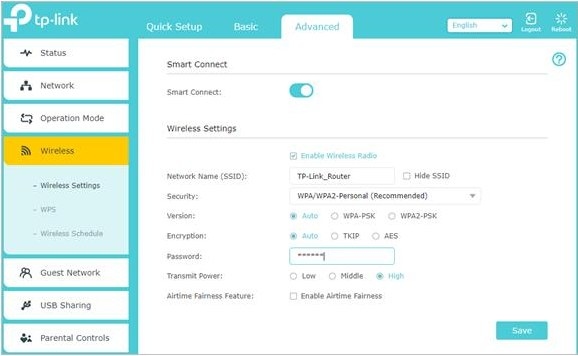
If the previous steps have not stopped the drops, try disabling Smart Connect. It can have compatibility issues with some client devices.
- Open the router’s web management page and log in. If needed, consult how to log in to the web-based management page of a TP-Link wireless router.
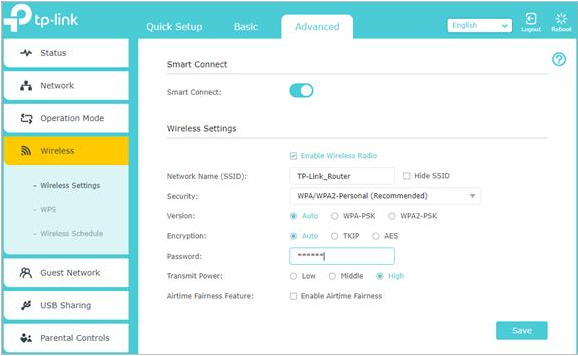
- Open Advanced > Wireless > Wireless Settings and disable Smart Connect.