
How to Troubleshoot Meta Quest Wi-Fi Connection Failures
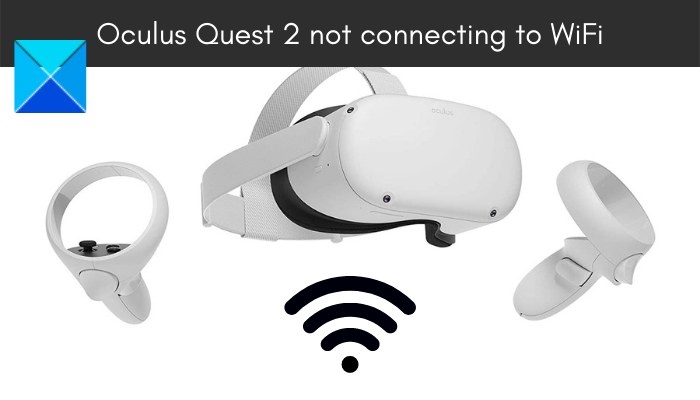
Meta Quest Wi-Fi failures or repeated disconnections may involve internet service, the router, headset glitches, or PC drivers. Work through connection checks and restarts before considering router or headset resets, noting that a Quest factory reset erases game data.
What We Know
If Meta Quest (previously Oculus Quest) cannot join WiFi or repeatedly disconnects, possible causes include poor internet connectivity, router problems, temporary headset glitches, or corrupted settings and data. On a PC, outdated or corrupted Meta Quest drivers may also be involved. Try the following fixes in order.
Test the internet connection
Verify that your internet connection is stable and high-speed. Troubleshoot any WiFi problems, try another more reliable network, or restart the router/modem to see whether connectivity improves.
Power-cycle the router
A router problem or bad router cache may prevent Quest from connecting. To power-cycle the router/modem:
- Press and hold the router’s power button to turn it off.
- Unplug its power cord from the main switch and wait at least 30 seconds to a minute.
- Reconnect the power cord and turn the router on.
- Try connecting Quest to the internet again.
If the internet connection is not the cause, continue with the headset checks.
Restart or hard-reboot the headset
A restart may clear a temporary headset glitch:
- Make sure the headset is on.
- Hold the power button on its right side.
- Choose Restart on the shutdown screen.
- After the restart, test the WiFi connection.
If that does not help, perform a hard reboot:
- Turn the headset off.
- Hold the power and volume (-) buttons together until the boot screen appears.
- Use the volume (+/-) buttons to highlight exit and reboot, then press the power button.
Once the headset starts, try WiFi again.
Forget the network and reconnect
Remove the saved WiFi network, then reconnect by entering its login credentials again. Afterward, reconnect the device through the desktop Oculus app. If the connection still fails, proceed to the driver check.
Update or reinstall Meta Quest drivers
On a PC, check for outdated or corrupted Meta Quest drivers. Oculus drivers are most likely located at:
C:\Program Files\Oculus\Support\oculus-drivers\
If necessary, download the driver again or update it from the official Meta Quest website. Double-click the downloaded setup file and follow the installation or update prompts.
Alternatively, open Device Manager, find the appropriate USB under Universal Serial Bus controller, and right-click it. Choose Update driver and follow the prompts. Test the connection after updating or reinstalling; continue below if the problem remains.
Change the Wi-Fi channel
Try changing the Wi-Fi channel by setting up the Quest headset on the 5 GHz band. Make sure no other device is connected to that band, then check whether Quest connects.
Restore the router’s default settings
A router reset may resolve problems caused by corrupted router settings:
- Enter the router’s IP address in a web browser and sign in with your username and password.
- Open System or System Tools, then find Restore or Factory Default.
- Select that option and confirm the reset.
- When it finishes, restart the router and try connecting Quest to WiFi.
Try a dedicated Quest router
If the earlier fixes have not helped, consider setting up a dedicated router for Quest. Many users prefer this arrangement for Virtual Desktop; you can test whether it resolves your connection problem.
Factory-reset Quest as a last resort
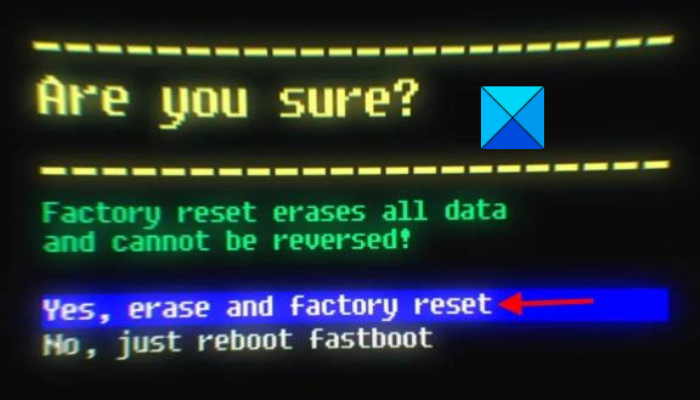
A factory reset may fix errors or bugs in the headset and Meta Quest software, but it erases all game data. Use it only after trying the other fixes, or if you are certain you want to proceed.
- Hold the power and volume buttons simultaneously.
- On the next screen, use the volume (+/-) buttons to highlight Factory reset, then press the Power button.
- Select Yes, erase and factory reset and press Power to begin.
If Quest will not connect to a PC
A separate PC connection failure may mean the computer does not meet the minimum requirements for Oculus devices. Also check the USB Cable/Port, update the Meta Quest software and device drivers, and power-cycle your devices.

