
Deco Settings That Help Smart Home Devices Connect and Stay Online
A dedicated IoT Network, High Capacity Mode, and changes to Fast Roaming or Beamforming can address smart home pairing failures and dropouts. Follow the Deco app procedures and checks for band mismatches, cloud access, and device discovery.
What We Know
Smart home cameras, lights, sensors, and other IoT devices often support only 2.4GHz Wi-Fi and cannot roam between mesh nodes. On a Deco network, this can lead to failed pairing, repeated disconnects, or attachment to a weak signal. Three settings can help before or after pairing: a dedicated IoT Network, High Capacity Mode for larger installations, and disabling Fast Roaming or Beamforming.
Why Use a Dedicated IoT Network?
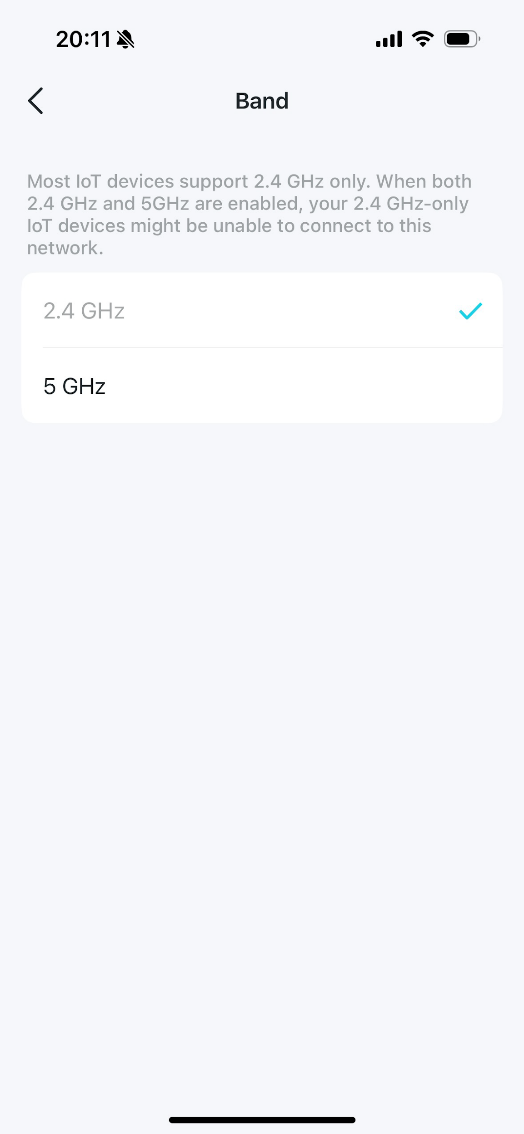
Many IoT setup apps require the phone and device to use the same 2.4GHz band. Deco uses a shared Wi-Fi name for 2.4GHz and 5GHz, so a phone may join 5GHz and prevent setup. A dedicated 2.4GHz IoT Network keeps both on the required band while improving connection success and security.
When High Capacity Mode Helps
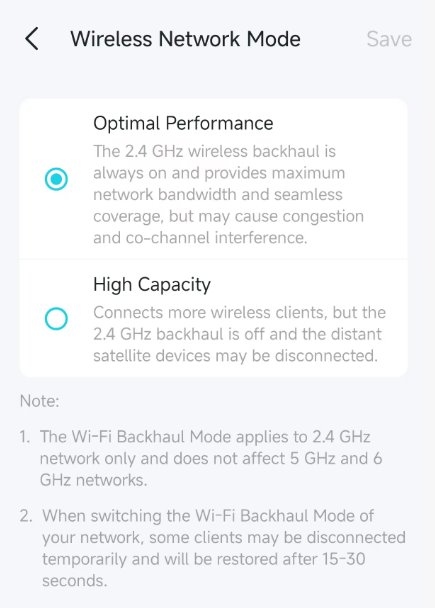
With 20+ sensors, lights, or plugs sharing a network with gaming PCs or 4K streaming TVs, congestion can affect reliability. High Capacity Mode schedules airtime more efficiently so dozens of low-bandwidth devices remain responsive under heavy traffic. It is available on Wi-Fi 7 and select Wi-Fi 6E Deco models.
Enable it in advance for a large setup, or when devices begin dropping under load. Use this mode only if you have more than 20 smart home devices or are experiencing smart home connection drops.
Why Turn Off Fast Roaming or Beamforming?
These features benefit phones and laptops but can cause compatibility problems for simpler devices, such as smart plugs and older cameras. Devices without roaming-protocol support may refuse a connection, remain attached to a distant weak signal, or disconnect when Deco attempts to move them to a better signal. Disabling Fast Roaming and Beamforming can resolve these issues.
Set Up the IoT Network
Notes: Feature availability varies by Deco model, and procedures may differ by operating system. These instructions use iOS.
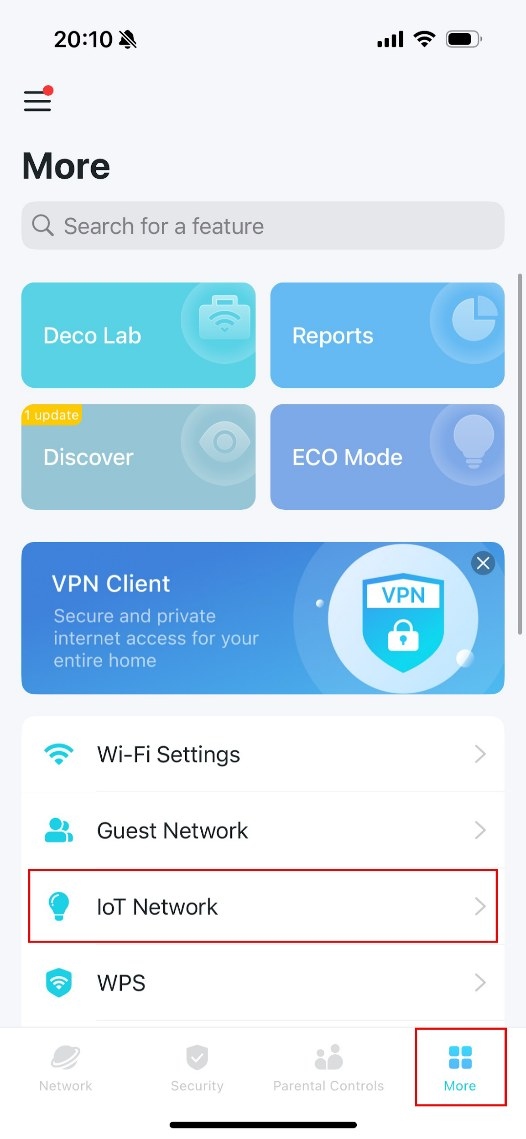
- In the Deco app, open More > IoT Network.
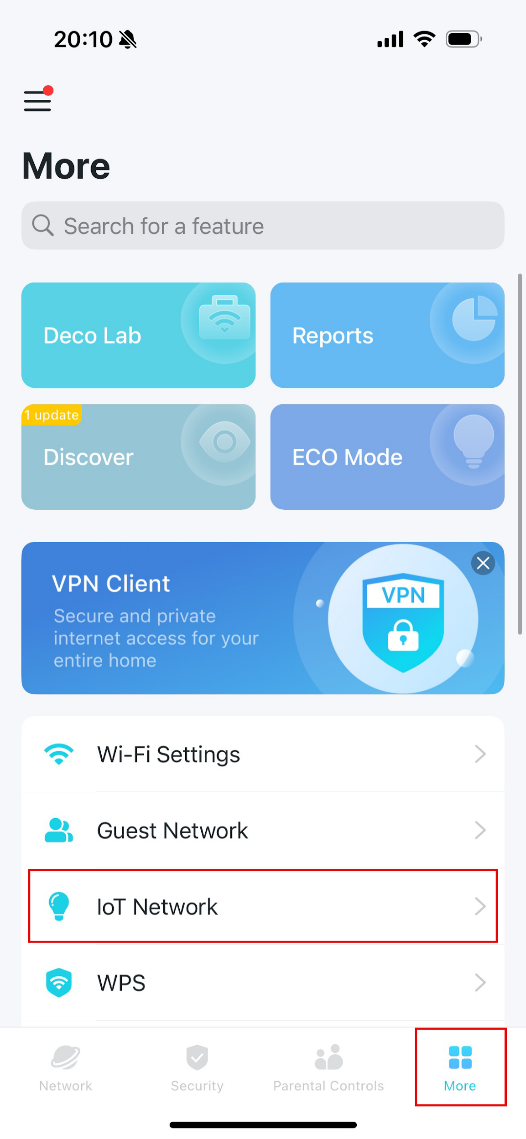
- Turn on IoT Network and enter a Wi-Fi network name and password.
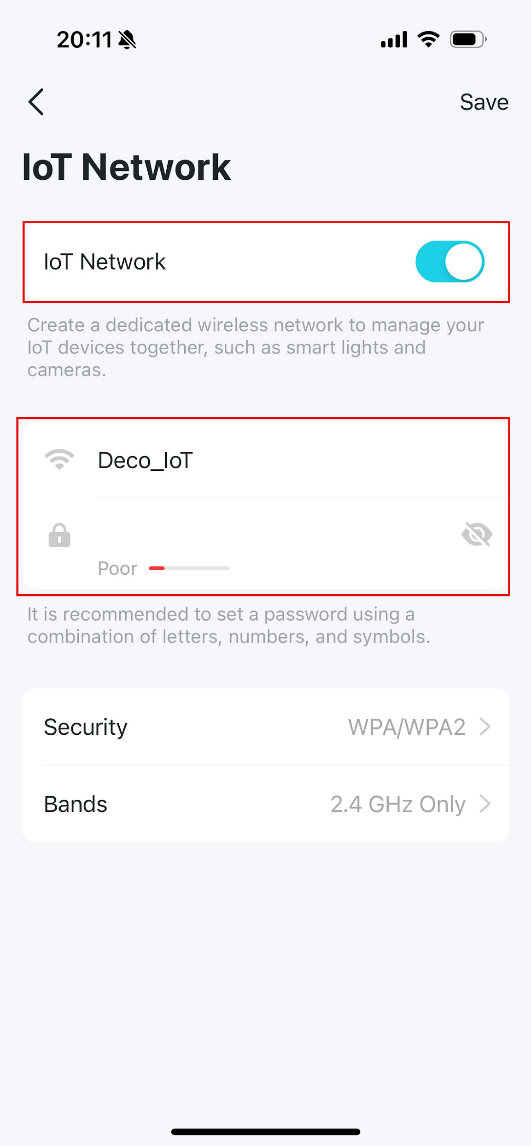
- Tap Security and choose a Wi-Fi security protocol. Selecting None allows devices to join without a password.
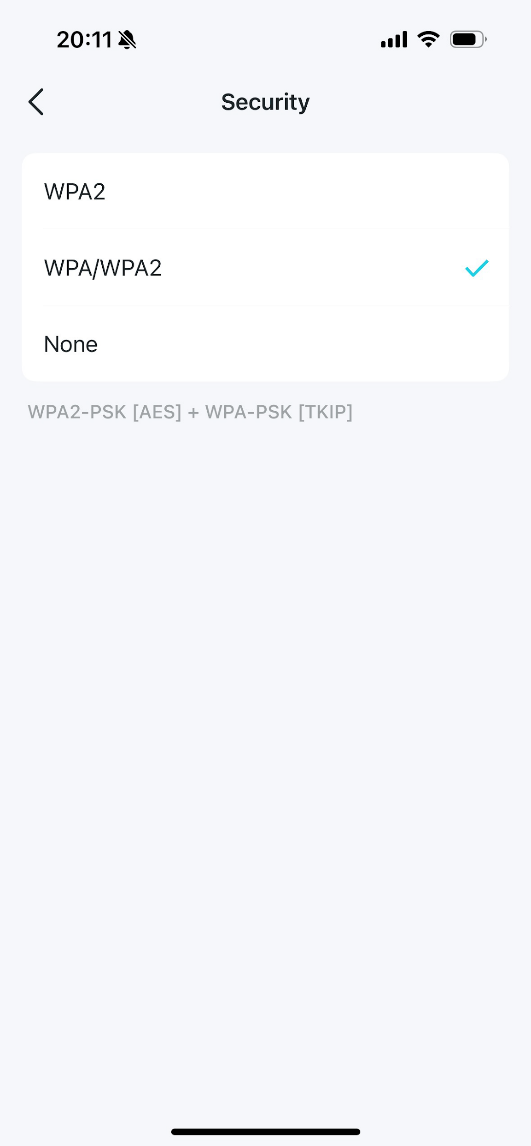
- Tap Bands and choose the band for the network.
- Connect your IoT devices to the new dedicated network.
Turn On High Capacity Mode
- Open the Deco app and navigate to More > Advanced > Wireless Network Mode.
- Select High Capacity or Stable, then click Save.
Turn Off Fast Roaming and Beamforming
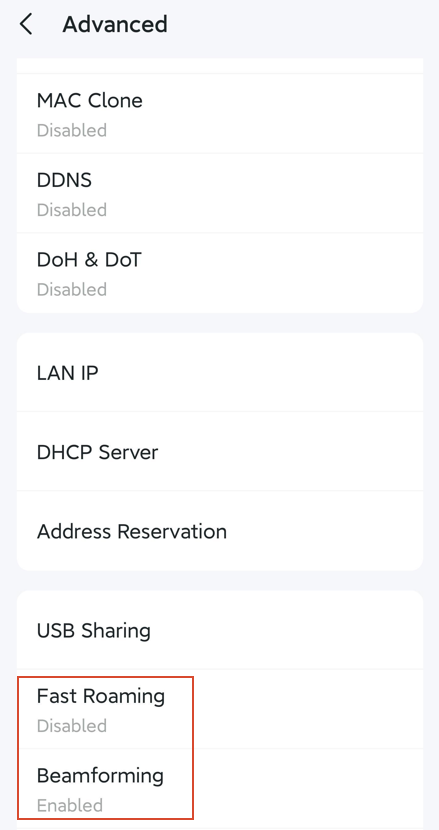
- In the Deco app, go to More > Advanced.
- Select Fast Roaming or Beamforming. Turn off Fast Roaming if a device cannot connect at all; turn off Beamforming if it repeatedly disconnects or times out.
Other Smart Home Connection Questions
Why Does Setup Still Demand 2.4GHz When My Phone Is on the IoT Network?
Forget or delete the main Deco Wi-Fi network in the phone’s Wi-Fi settings. Then temporarily disable Cellular Data (4G/5G) to force the app’s traffic through the IoT network.
Why Is a Device Online in Deco but Offline in Its Own App?
This usually indicates that it received a local IP address but cannot access the manufacturer’s cloud server. Manually change the Deco DNS server to address this.
Why Can’t Apple HomeKit or Google Home Find IoT Devices?
Cross-network communication is enabled by default on the IoT Network. Check Security > Device Isolation in the Deco app and ensure Device Isolation is off for the affected device.
What Else Helps With Slow or Frequently Disconnecting IoT Devices?
- Move IoT devices and Deco units away from Bluetooth devices, microwaves, cordless phones, mirrors, and metal surfaces.
- Enable the 5GHz band in IoT Network settings to reduce traffic on 2.4GHz.
For further function and configuration details, download your product’s manual from the Download Center.

