
Practical Fixes for a Wi-Fi Connection That Keeps Dropping
Repeated Wi-Fi drops can originate with your internet provider, router, or device. These checks cover restarts, outages, network load, firmware, Windows troubleshooting, range, and interference.
What We Know
Repeated Wi-Fi disconnections can interrupt work and leisure alike. The cause may be your internet provider, router, or the device you are using. Work through these general checks to narrow it down.
Ways to troubleshoot recurring Wi-Fi drops
Restart the router and your device
Restart the router first, then your smart device or PC. Memory can behave erratically, and hardware left running for long periods may become unreliable; a restart sometimes clears the problem.
Check for an outage
Your provider may be experiencing a wider disruption, or weather or construction may have affected local coverage. Ask residents’ groups and, if possible, contact your ISP to check.
Reduce the number of users
Too many users can exhaust available bandwidth, slowing the network or causing partial or complete connection loss. Reduce the number of connected devices, or upgrade your plan if you need faster internet.
Update the router’s firmware
Firmware updates provide bug fixes and security updates, and may improve compatibility with connected devices and their operating systems. Use a web browser on a connected device to update the router’s firmware.
Run the device’s troubleshooter
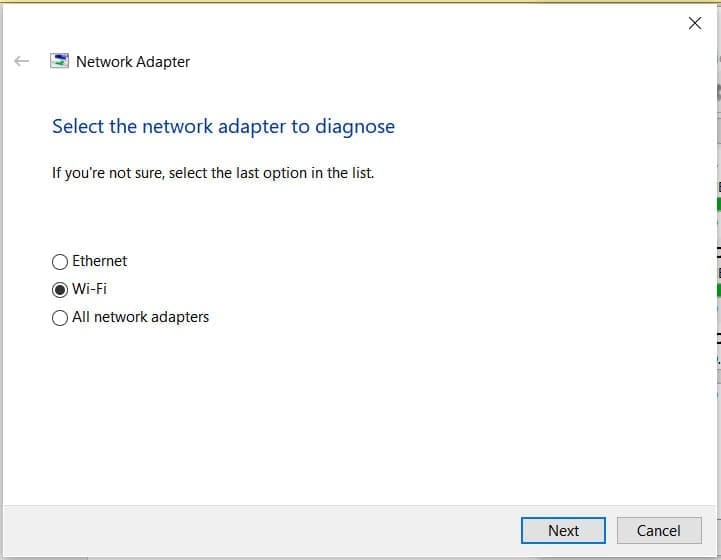
If only one device seems affected, try its built-in troubleshooting tool. In Windows, right-click the Network icon in the system tray and run the Troubleshooter to identify the Wi-Fi issue. It may also help by resetting the computer’s Wi-Fi.
Reset the PC’s network
You can also reset the network on your PC:
- Open Settings with Win + I, then go to Network & Internet.
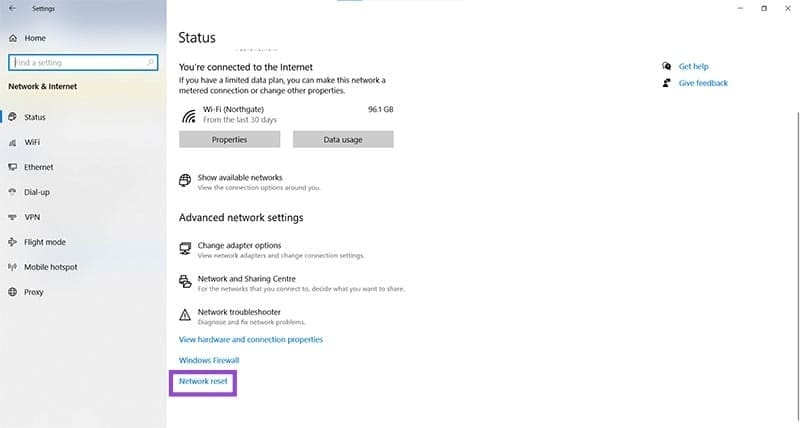
- Scroll to Network Reset and select it.
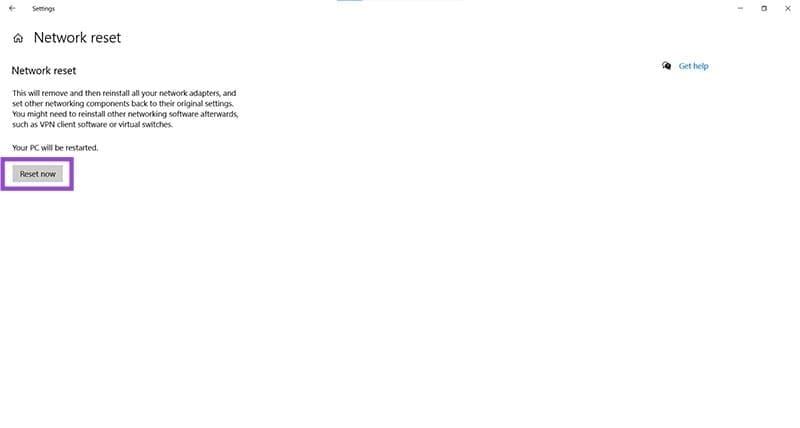
- Choose Reset Now, then restart the PC to complete the network reset.
Check whether you are out of range
Some routers provide unreliable coverage at longer distances. Move the router to a more central location in your home, or consider buying one or two Wi-Fi range extenders for areas with poor reception.
Limit radio interference
Other radio waves, phone signals, and appliances can interfere with Wi-Fi, particularly at 2.4 GHz. If available, try the router’s 5Ghz option or move your device closer.
Keep the router away from powerful electronic devices and minimize physical obstructions around it to improve its output.

