
How to Diagnose Missing or Intermittent Wi-Fi Connections
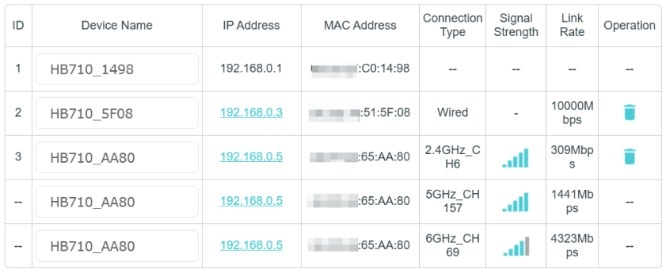
Check signal strength, mesh backhaul quality, and the wired internet connection to narrow down Wi-Fi problems. Then review coverage, network names, power-saving settings, channel congestion, and device compatibility.
What We Know
Check the device’s link rate and signal strength
In WebUI or Aginet APP, open the router/AP node to view the connected device’s link rate and RSSI/Signal Strength. Low readings can indicate an unstable connection. Move the device closer to the router/AP node, then check the readings again.
Use these signal-strength ranges to interpret the results:
| Signal Strength (dBm) | Rating | Meaning |
|---|---|---|
| -30 to -50 | Excellent | A near-perfect or perfect signal that supports seamless online activity without disconnections. |
| -51 to -60 | Good | A strong signal suitable for most activities, including demanding gaming and video streaming. |
| -61 to -70 | Fair | Adequate for routine tasks such as email and web browsing. |
| -71 to -80 | Poor | Limited connectivity, with possible occasional disconnections and data loss. |
| -81 or lower | Very weak | Almost disconnected, with frequent data loss and interruptions during tasks. |
Improve coverage in blind spots
If the main router cannot cover an area, consider adding a mesh node. Position the router/AP node high above the floor and away from obstacles to reduce transmission interference.
Inspect the wireless backhaul
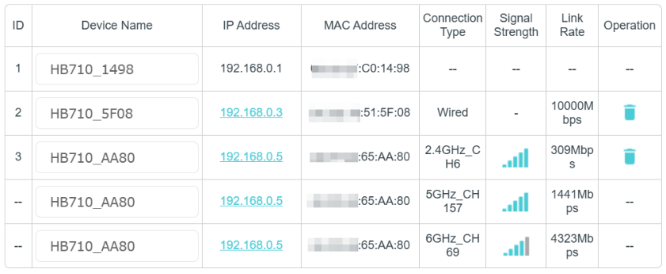
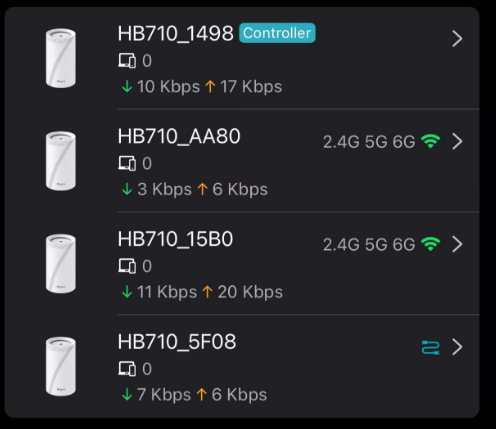
Check the backhaul link rate and signal strength between the router and the wireless mesh AP node. If either is too low, reposition the node for a more stable connection.
The recommended backhaul indication is 4 bars and above in Web UI, or green signal strength in Aginet APP.
WebUI:
Aginet APP:
Test a wired connection
- Connect the device directly to the ONT modem and check whether the internet backhaul connection drops or becomes unstable.
- Inspect the LED status of the router/ONT modem.
- If instability continues, report the internet backhaul issue to your service provider.
Use separate SSID names
Give the separate 2.4GHz, 5GHz, 6GHz, and MLO Wi-Fi bands different SSID names rather than sharing one name.
Check power-saving settings
Disable power-saving mode on affected devices, then monitor their performance to see whether it was contributing to the problem.
Look for channel congestion
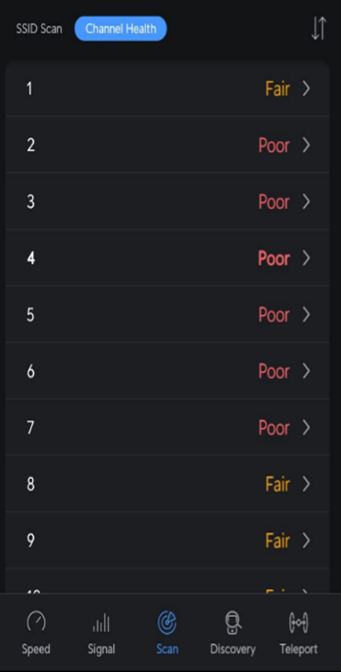
If nearby networks may be congesting 2.4GHz Wi-Fi, select another channel and a lower channel width in WebUI or Aginet APP, then monitor the connection again.
A third-party Wi-Fi performance app can show channel congestion, as illustrated below:
Check older-device compatibility
Some older devices may not support BE mode or higher security encryption standards. Change the Wi-Fi band settings to 802.11 b/g/n/ac/ax (without BE) and select a lower security setting, such as WPA2-PSK only.

