
How to Troubleshoot Repeated Wi-Fi Disconnects in Windows 11 and 10
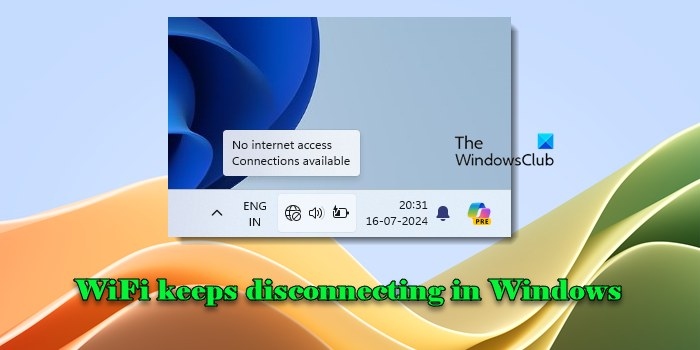
Repeated Wi-Fi drops can stem from signal, router, adapter, software, or ISP problems. Work through hibernation, Windows troubleshooting, power settings, network reset, and driver repairs before reseating the Wi-Fi card.
What We Know
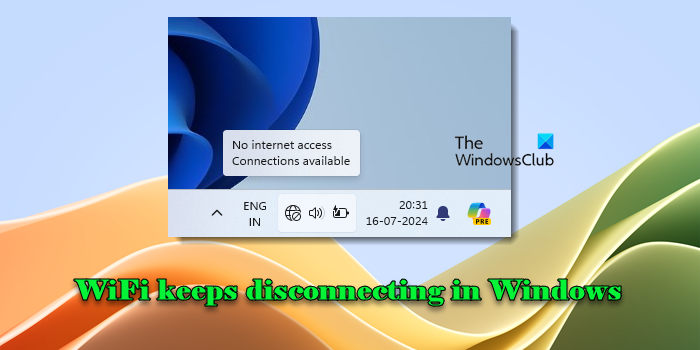
On Windows 11/10, Wi-Fi may disconnect every few minutes and reconnect automatically during gaming, large downloads, VPN use, or sleep. Weak signals, router or adapter faults, software conflicts, and ISP problems are possible causes. A restart may help; otherwise, work through the checks below.
Hibernate, Then Turn the PC Back On
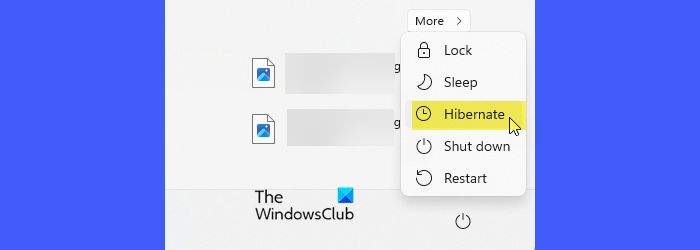
A few users report that hibernating and turning the PC on again resolves the drops. Hibernation essentially reloads device drivers, clears temporary network-stack problems, restores the connection, and resets hardware, giving the Wi-Fi adapter and other components a fresh start.
Run the Network and Internet Troubleshooter
- Use Win + I to open Settings.
- Go to System > Troubleshoot > Other troubleshooters.
- Select Run beside Network and Internet.
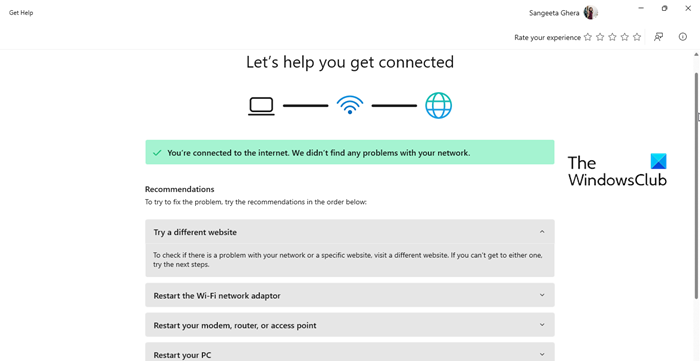
The tool checks network configuration, resets the adapter and TCP/IP stack, and scans for other connection problems. It either applies a fix automatically or provides further instructions.
Turn Off Adapter Power Saving
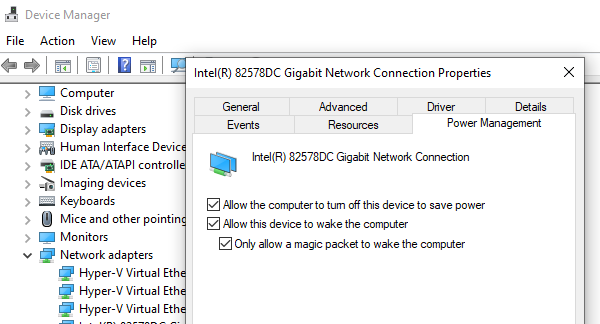
Power-saving settings can switch the network adapter off and interrupt connectivity. Disable this behavior to keep the adapter available:
- Press Win + X and choose Device Manager.
- Expand Network adapters, right-click your Wi-Fi adapter, and select Properties.
- On the Power Management tab, clear Allow the computer to turn off this device to save power.
- Click OK, then check whether disconnections stop.
If Power Management is missing, use this alternative:
- Search Windows for “edit power plan” and press Enter.
- In Control Panel, select Change advanced power settings.
- Expand Wireless Adapter Settings in Power Options.
- Set Power Saving Mode to Maximum Performance for both On battery and Plugged in.
Reset Networking Settings
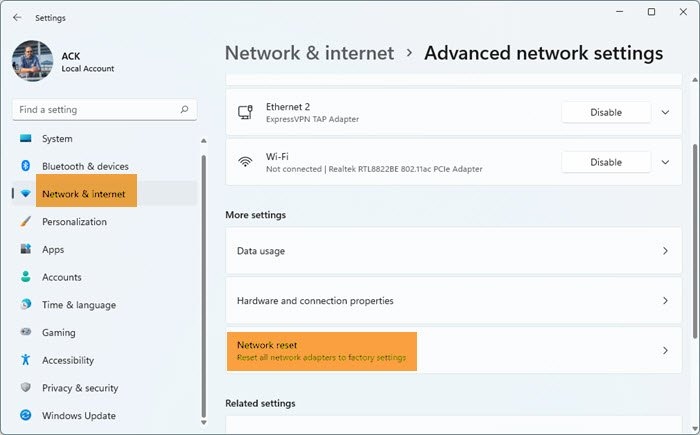
If the troubleshooter does not resolve the issue, use Network Reset to restore networking components and settings to their defaults.
- Open Settings and go to Network & Internet > Advanced network settings > Network reset.
- Click Reset now beside Network reset.
This removes and reinstalls every network adapter and returns other networking components to factory settings.
Update or Reinstall the Network Driver
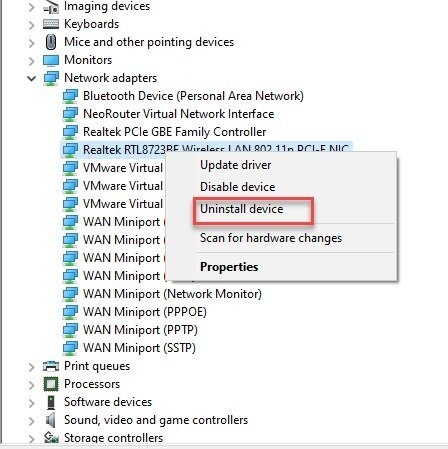
Outdated, damaged, or incompatible adapter drivers can cause repeated disconnections.
- Open Device Manager and expand Network adapters.
- Right-click the Wi-Fi adapter and choose Update driver.
- Select Search automatically for updated driver software. Windows will look for and install the latest driver.
If updating does not help, reinstall the driver:
- In Device Manager, expand Network adapters, right-click the Wi-Fi adapter, and select Uninstall device.
- Check Delete the driver software for this device, then click Uninstall.
- Reboot so Windows can automatically reinstall missing drivers.
If Windows cannot locate the correct driver, download and install the WiFi drivers manually.
Reseat the Wi-Fi Card
If the preceding fixes fail, physically disconnecting and reconnecting the Wi-Fi card or adapter may reset the hardware and correct a loose connection.
- Shut down the computer and unplug its power cord.
- Locate the card, typically beneath a laptop’s bottom panel or in a desktop motherboard’s PCIe slot.
- Use a screwdriver to open the panel and remove the screws securing the card.
- Carefully pull the card out of its slot, then reinsert it securely.
- Refasten the card, close the case, reconnect power, and turn on the PC. Check whether the connection remains stable.
Wi-Fi Turns Off When Ethernet Connects
This is usually intentional in Windows 11 because wired connections take priority. Go to Settings > Network & Internet > Wi-Fi > Manage known networks and adjust priority or disable the option that disconnects Wi-Fi when LAN is active. Alternatively, look in BIOS/UEFI for “Disable Wi-Fi when LAN connected” and turn it off. Group Policy Editor is another option.
Wi-Fi Disappears After a Windows Update
If Wi-Fi disappears after Windows Update or a Feature Upgrade, first sign into the router’s web interface and verify that it works correctly. Update its firmware if needed. Next, check for installed VPN software and uninstall it if incompatible with Windows 11. If the problem continues, update the Wi-Fi driver and run the Network and Internet Troubleshooter.

