
Diagnosing Slow Wireless Speeds on CPE AP and Client Links

Troubleshoot slow client speeds by checking the internet connection, the local Ethernet link, and the wireless connection between CPE devices. Channel width, installation, antenna alignment, and wireless settings can all affect performance.
What We Know
When two CPE devices operate in AP and Client mode, slow speeds at the end client can have several causes, including available bandwidth and device placement. Use the topology below to isolate the problem.

Check the connection in three sections, in this order:
- Part I: Internet to CPE_AP.
- Part II: CPE_Client to Client.
- Part III: CPE_AP to CPE_Client.

Part I: Check Internet Bandwidth
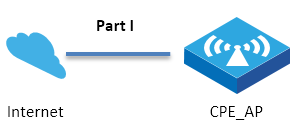
Total bandwidth is the main potential bottleneck here. With a 50Mbps internet connection, even a 300Mbps CPE device cannot provide the client with more than a theoretical 50Mbps. Actual speeds will be lower because of interference and other factors. First establish whether the internet connection itself is limiting performance.
Part II: Check the Client’s Wired Connection
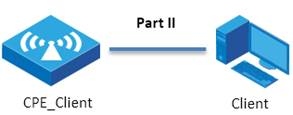
If internet bandwidth is not the limitation, check the client’s link speed using FAQ2265.
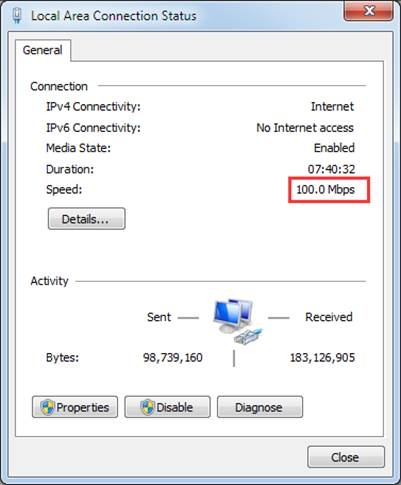
If measured speed falls below the link speed, inspect the following potential causes:
- The Ethernet cable.
- The Ethernet port.
Part III: Check the CPE Wireless Link
Check both the negotiated link speed and actual wireless throughput between CPE_AP and CPE_Client.
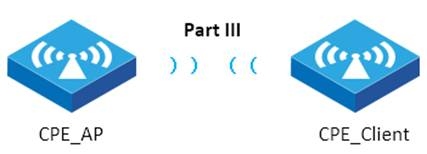
Check the Link Speed
Channel width determines the maximum possible link speed, as shown in this table.
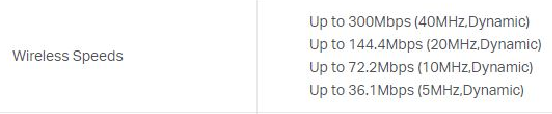
For example, two CPE510 devices connected wirelessly in AP and Client mode have a maximum link speed of 72.2Mbps at a channel width of 10MHz. View the negotiated speed on the CPE_AP management page.
The source’s test environment produced a 65Mbps link speed with a 10MHz channel width.
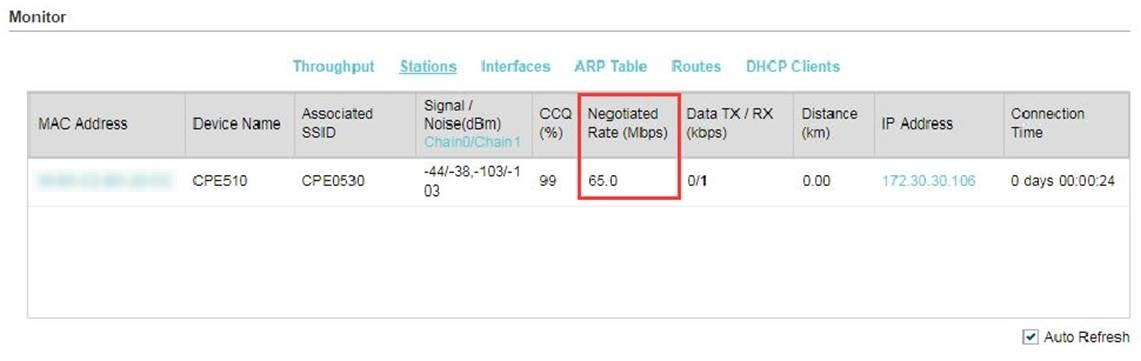
Note: Although the illustrated 65Mbps is below the stated maximum throughput, it may be reasonable: distance, wind, and other conditions affect the link.
Measure Actual Wireless Speed
CPE devices include tools such as Speedtest®/Ping/Survey.

Use Speedtest® to measure wireless throughput:
- Configure CPE_Client as Server.
- Configure CPE_AP as Client.
- Click Start to run the wireless speed test.
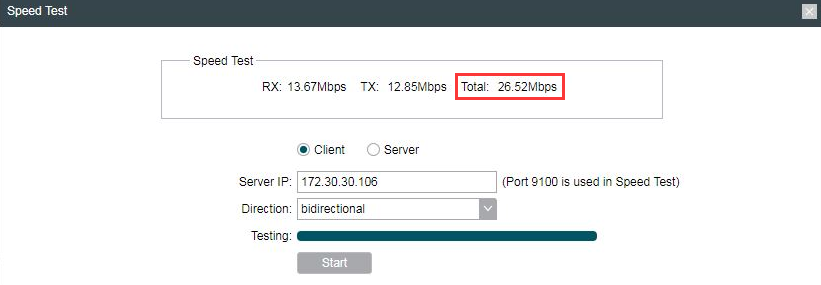
Note: Depending on the wireless environment, throughput may reach only 1/3 or 1/2 of the actual link speed.
Improve an Unusually Slow Link
Distance, wind, and other environmental factors normally keep link speed below maximum throughput. If performance is exceptionally poor, review installation and deployment first, then antenna alignment and wireless settings.
Installation and Deployment
Outdoor obstacles can obstruct a CPE link. Mount the devices high enough to avoid them; consult FAQ907 to determine the installation height.
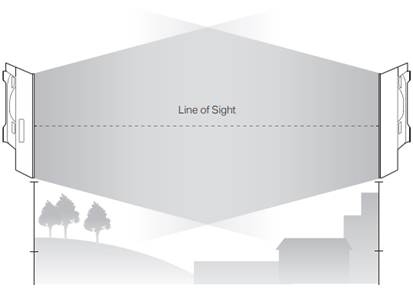
- For links between remote sites, account for Earth curvature when calculating mounting height.
- Outdoor weather, including rain and wind, can affect link speed.
Antenna Alignment

A CPE signal can be received only within its radiation range. Align the devices during installation so they fall within that range. See FAQ1044 for alignment guidance.
Wireless Settings
After checking placement and alignment, review these settings to improve throughput:
- Transmit Power: Higher power extends signal reach. Normally, set it to the maximum value for the strongest signal.
- Channel: Selection defaults to automatic. Use Spectrum Analysis to find and choose an uncongested channel. Avoid a DFS channel if possible.
- Channel Width: When interference is low, use 20/40MHz for better throughput.
- Distance: This represents the distance between the AP and station and primarily addresses long-distance communication. Follow FAQ2084 to configure it.
- MAXtream: This proprietary Wi-Fi protocol works only with TP-Link’s Pharos series products. It addresses hidden nodes; enabling it is recommended to improve wireless performance. See FAQ694 for details.

