
Six Checks for a Slow TP-Link Wireless Adapter
When a TP-Link wireless adapter is slower than other devices, check placement, interference, association speed, drivers, computer software and router firmware. These steps also explain what information to send to support if performance does not improve.
What We Know
A TP-Link wireless adapter that runs slower than other devices on the same network may be affected by its location, interference, connection rate, driver, computer software or router firmware. Work through these six areas to narrow down the cause.
Check the adapter’s placement
Walls and ceilings can weaken wireless signals, particularly when solid metal is involved. Keep the route between the router and adapter as clear as possible.
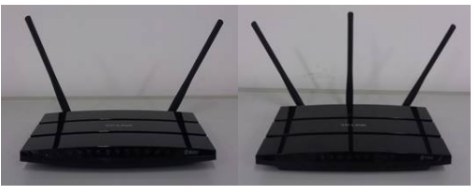
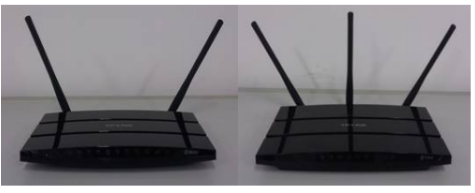
For a stronger signal, position the router and adapter antennas at 45 degrees (diagonally) or 0 degrees (parallel to the floor), rather than vertically.
For PCIE adapters, consider the computer main board’s position and make sure it does not interfere with the adapter antenna’s transmission.
Reduce interference on 2.4 GHz
Many network and electromagnetic devices operate at 2.4 GHz, making the band congested and less reliable. Use 5 GHz for network activities when available to improve performance.
Check the adapter-to-router association speed
A low association speed also limits internet speed. Typically, downloads on 5 GHz reach around 50% of the wireless association speed; on 2.4 GHz, they reach around 30–50% of the wireless link speed.
To achieve the highest association rate, adjust the router’s wireless channel and channel bandwidth. Performance varies by channel, with crowded channels performing worse. Set channel bandwidth to the best or largest value available for your router.
Update the adapter driver
TP-Link releases driver updates to address problems and improve adapter performance. Install the latest driver available for your adapter from the TP-Link Download Center to improve performance and reliability.
Check software on the computer
TP-Link reports that some antivirus and network-management software, including SmartByte and Avast, can substantially reduce adapter download speeds. Temporarily uninstall such software and retest downloads to determine whether it is responsible.
Check router firmware
Compare other wireless devices with the TP-Link adapter in the same location. If their speeds are equally slow, confirm that the router has the latest firmware. You can also ask the router manufacturer’s support team for help.
Information to send to TP-Link support
If these checks do not resolve the problem, contact TP-Link support with:
- Download speeds from other wireless devices tested in the adapter’s location
- The TP-Link adapter’s wireless association speed
- The driver version and computer system information
- The router’s model number
For more information about functions and configuration, download your product manual from the Download Center.

