
Troubleshoot Slow Downloads through a TP-Link Range Extender
A stronger Wi-Fi signal through a range extender does not always mean faster downloads. Follow these checks to separate extender placement issues from connection-speed problems and collect results for TP-Link support.
What We Know
If your TP-Link range extender improves signal strength but downloads become slower, follow these troubleshooting steps. Here, “end-device” means a computer, laptop, mobile phone or similar device.
Step 1: Give the extender a separate Wi-Fi name
Use different Wi-Fi names (SSIDs) for the router and range extender. If they already share a name, reset the extender and create a separate SSID.
Step 2: Check the extender’s signal
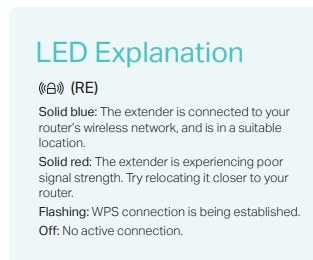
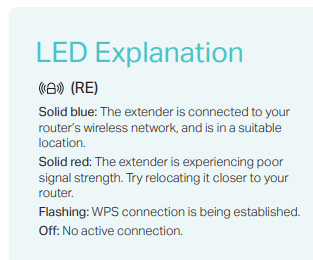
Consult the Quick Installation Guide/User Guide to interpret the RE or signal LED. If it indicates a weak signal caused by excessive distance, move the extender closer to the router.
Step 3: Compare download speeds
- Connect only one end-device to the extender. With no high-bandwidth activities running, perform a Speedtest® at www.speedtest.net and capture a screenshot of the result.
- Keep the same device in the same location, connect it to the router, and test again at www.speedtest.net. Avoid high-bandwidth activities and save another screenshot.
Step 4: Check the wireless link speed
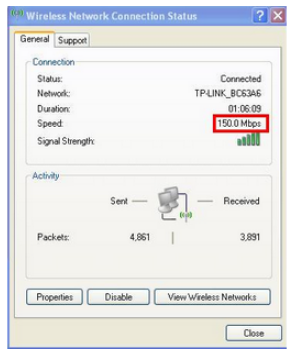
Position the end-device 2-3 meters from the extender. While connected to the extender, check its wireless link speed and take screenshots. Skip this step if you cannot find the information.
Windows
Mac OS
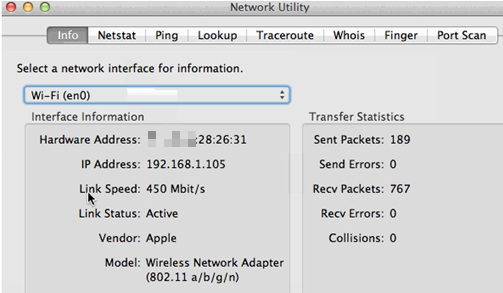
Open network utility, select the Info tab, and choose Wi-Fi (en0 or en1) from the drop-down options. Link Speed shows the wireless connection speed; the example displays 450 Mbit/s (megabits per second).
Step 5: Contact support
Send your speed-test screenshots to TP-Link support for further assistance.

