
Testing TP-Link Router Speeds over Ethernet and Wi-Fi
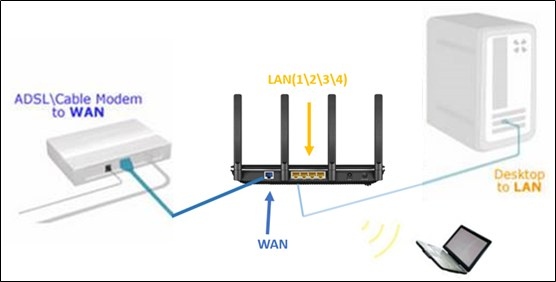
Prepare your test environment, compare wired and wireless performance, and check router settings to investigate slow TP-Link speeds. The procedure covers interference, connection rates, packet capture, and WAN configuration.
What We Know
This procedure applies to most TP-Link broadband access products with slow Speedtest results, including TL-WR841N, TL-WR842N and TL-WR743ND. It does not apply when the Speedtest tool is built into the device.
Prepare for testing
- Connect one computer to the router by Ethernet and a laptop, PC or phone by Wi-Fi so you can compare wired and wireless performance.
- Close applications that consume network resources on the test device.
- Install inSSIDer and any network analysis tools you will use.
- Restore the router to factory settings to remove configuration variables.
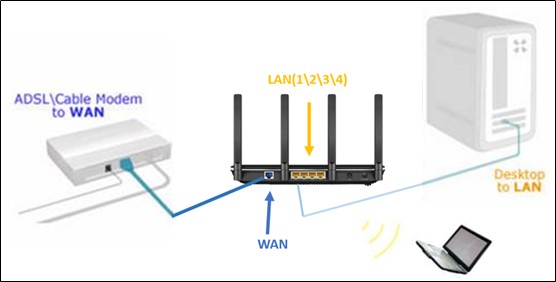
Step 1: Check placement and interference
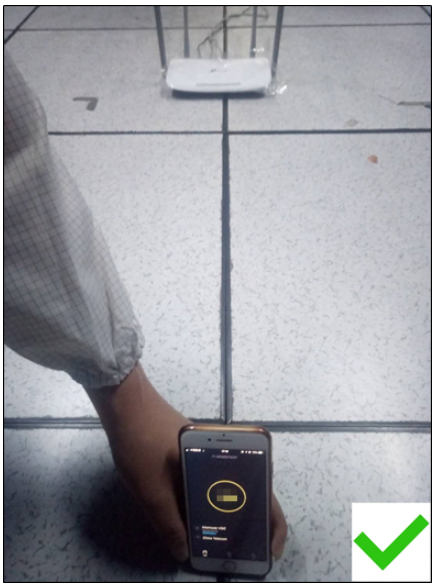
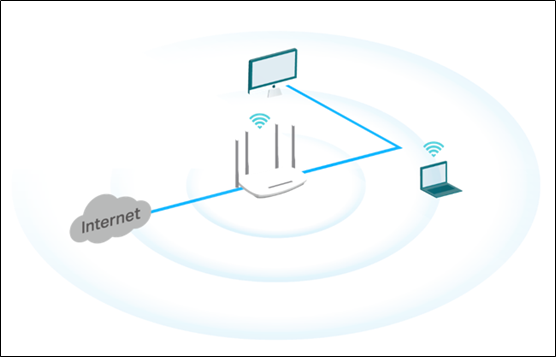
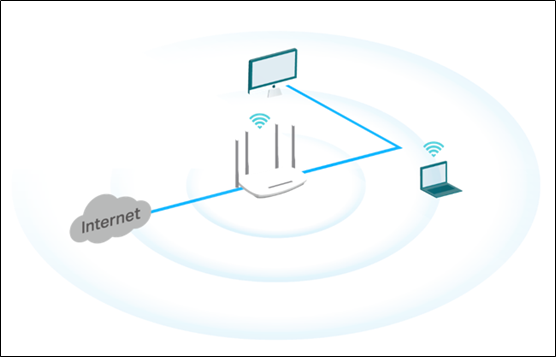
- Align the test device with the router’s antenna at the same height. Do not put the router on the ground during testing; this affects wireless performance.
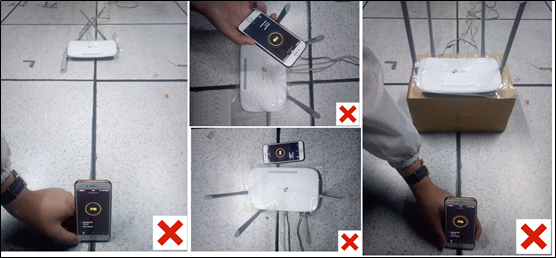
Avoid inconsistent antenna polarization, placing the device too close to the router, misalignment, or a height difference between the device and antenna.
- Check for nearby sources of interference using either method below.
Method 1: Use the analysis tool
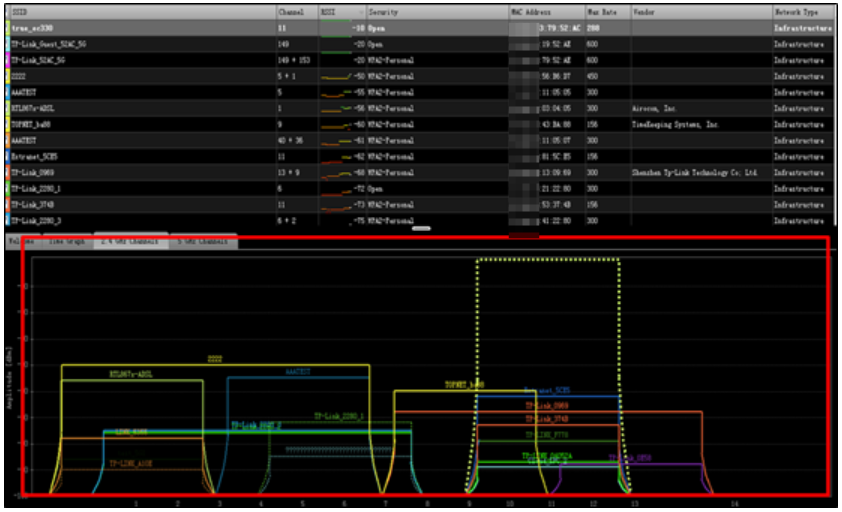
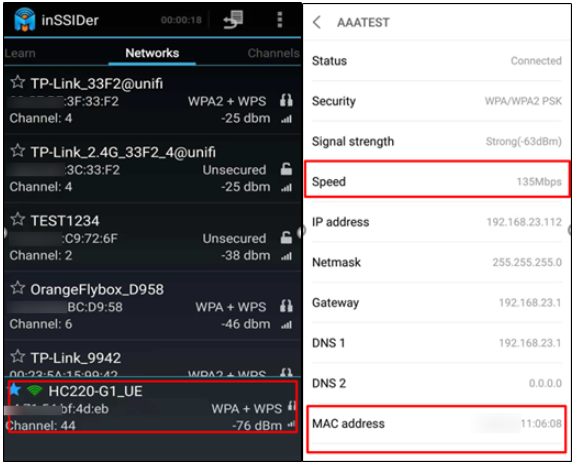
Open the preinstalled inSSIDer tool, referred to here as Insider, and inspect the number of nearby interference sources in the bold red box.
Method 2: Use WDS scanning
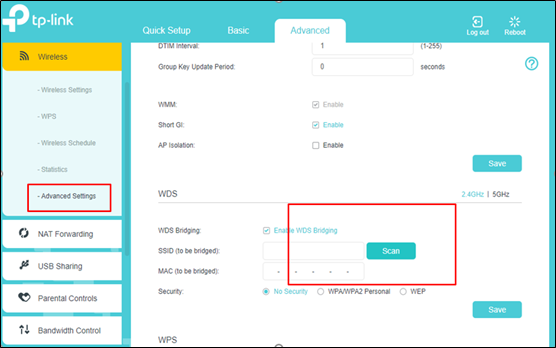
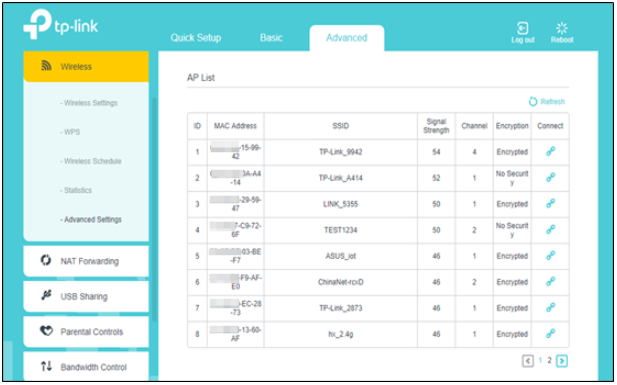
In the WDS scan function, select “scan” to check interference.
Step 2: Compare performance
- Keep the test device in the same position and at the same height relative to both the test router and the competing router.
- Use that same device to test each router alternately.
- Match all wireless parameters on both routers before alternating tests.
The recommended wireless parameters are shown below.
Wireless
Mode
Channel
Bandwidth
RTS Threshold
2.4GHz
802.11b/g/n mixed
1
HT40
2347
5GHz
802.11a/n/ac mixed
Band 1
HT80
2347
- Export the configuration profile: conf.bin.
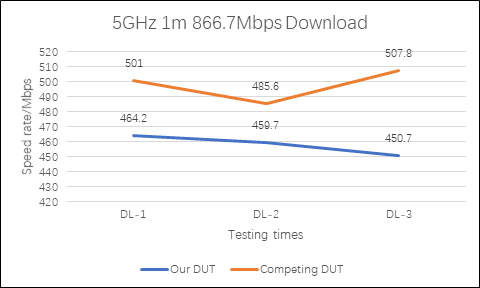
- Record data throughout the comparison.
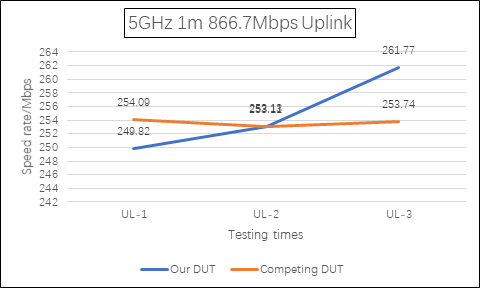
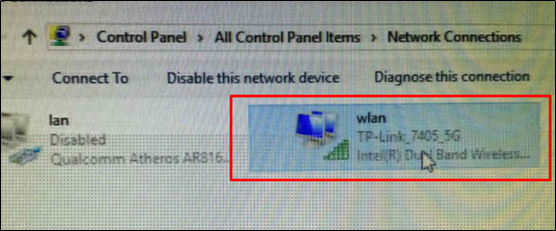
- Check the network card and its negotiation speed. Follow Control panel > network and Internet > network connection, double-click the wireless card, and select properties.
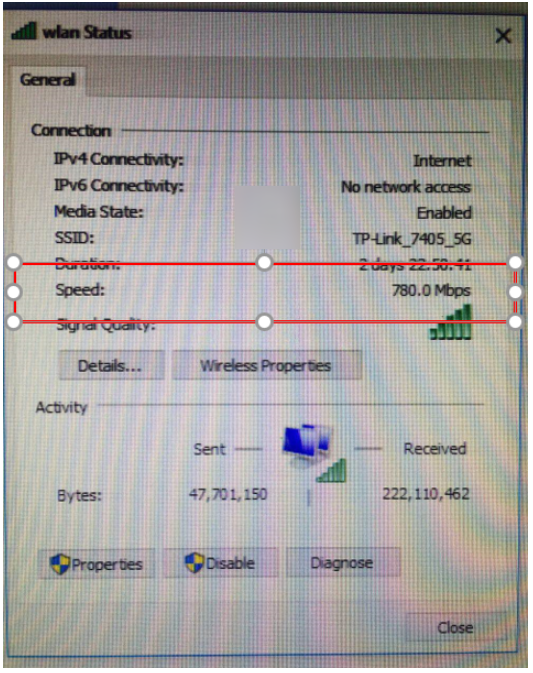
Use this table to compare the test device against the standard specification.

Compare the wired and wireless clients as well.
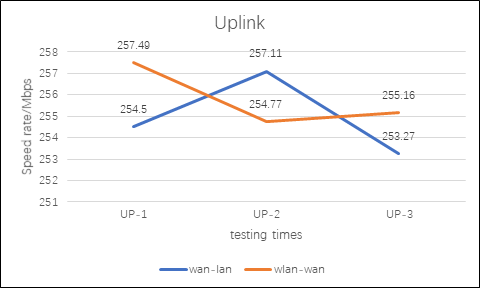
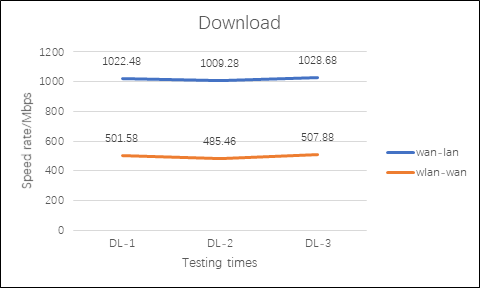
Step 3: Check router configuration
WAN interface
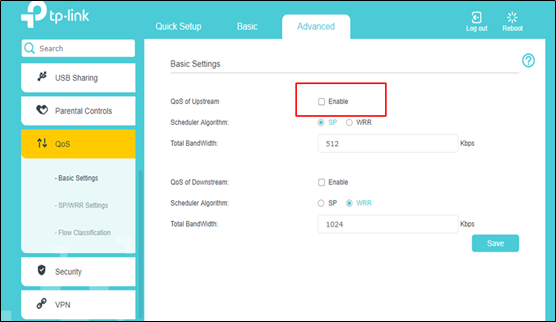
- Disable Quality of Service (QoS).
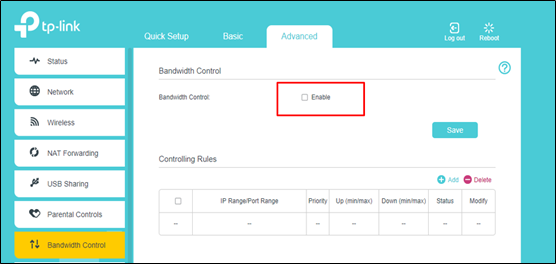
- Disable Bandwidth Control.
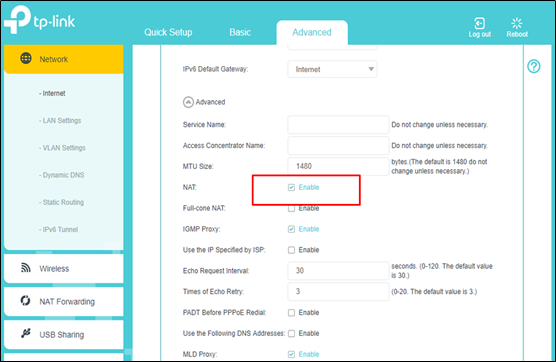
- Confirm that NAT is enabled and MTU remains at its default value. Log in to the router management website, then follow Network > Internet > Advanced > Enable NAT.
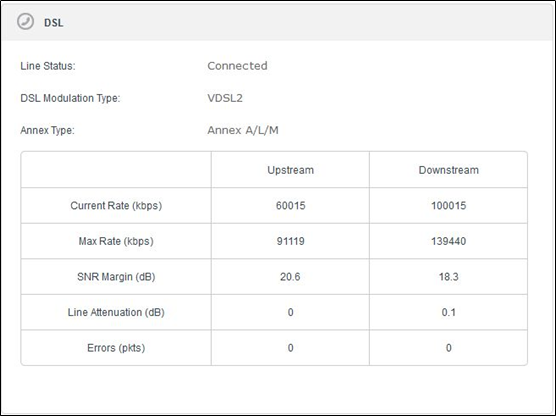
- Check the WAN interface link mode. Use the data table to distinguish ADSL from VDSL. The listed ADSL limits are Max Rate Upstream<2Mbps Downstream<25Mbps.
2.4GHz wireless settings
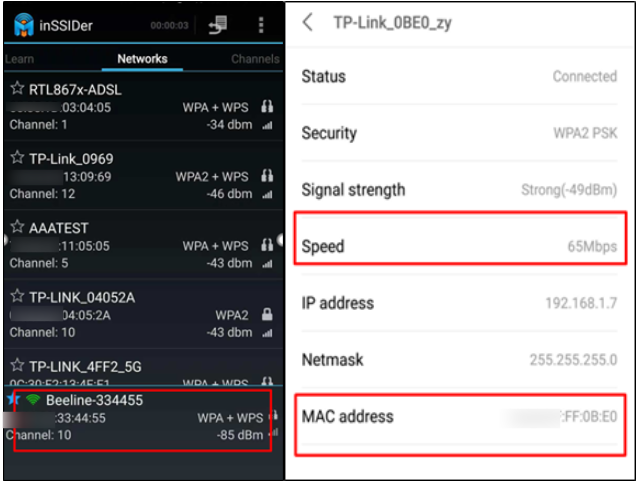
- Open inSSIDer on the test device and collect connection details. The illustrated readings are:
- Channel: 10
- Negotiating speed: 65Mbps
- RSSI: -85dBm
- Associated BSSID: 00:11:22:33:44:55
- Prepare packet capture with these parameters:
- RTS Threshold:2347 when interference is low
- Short GI: Enable
- WMM: Enable
- TxBF: Enable
- MU-MIMO: Unable; this function can be turned on when multiple clients are present
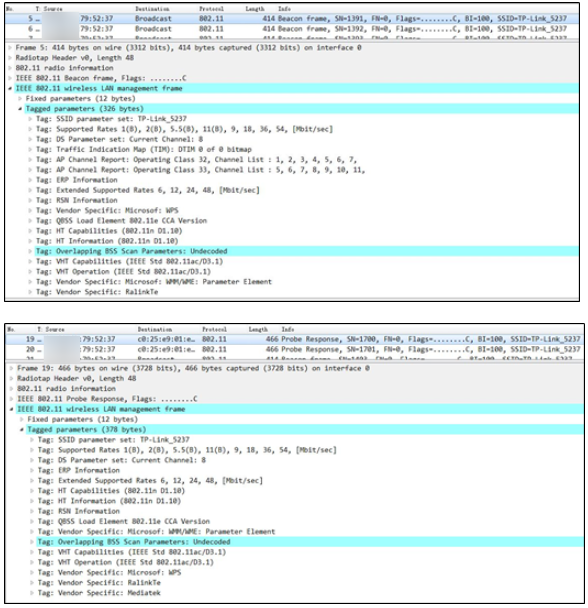
Turn on Sniffer, capture packets on the appropriate channel, and record the Beacon Frame and Probe Response packets.
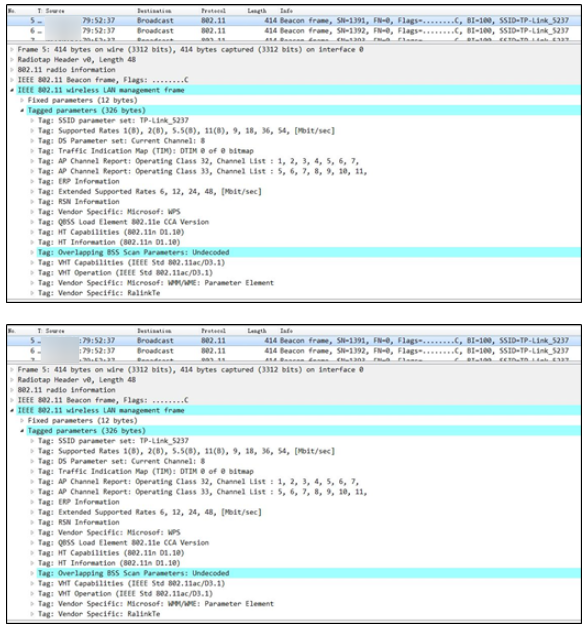
- To improve the wireless rate, use inSSIDer to record interference and signal strength across channels, then choose a channel with little interference. Select HT20 for strong interference or HT40 for weak interference.
5GHz wireless settings
- Open inSSIDer and collect the connection details. The illustrated readings are:
- Channel: 10
- Negotiating speed: 135Mbps
- RSSI: -85dBm
- Associated BSSID: 00:11:22:33:44:55
- Configure wireless packet capture as follows:
- RTS Threshold:2347 when interference is low
- Short GI: Enable
- WMM: Enable
- TxBF: Enable
- MU-MIMO: Unable; this function can be turned on when multiple clients are present
Enable Sniffer and capture packets on the appropriate channel. Record the Beacon Frame and Probe Response packets.
- Use inSSIDer to record channel interference and signal strength, then select a channel with little interference. HT80 is the recommended available bandwidth option.
Step 4: Submit your results
For details about individual functions and settings, find your product’s manual in the Download Center.

