
How to Fix Windows 11 Reporting No Internet When You Are Connected
Windows 11 can display a no-internet warning even when websites still work. Start with connection resets and updates, then check IPv6, connectivity-probe registry entries, and system files if the warning persists.
What We Know
A no-internet warning in Windows 11 does not always mean your connection has stopped working. Although often a minor annoyance, it can complicate troubleshooting, especially when slow internet suggests another problem.
Quick checks before deeper troubleshooting
- Disconnect any VPN or proxy. Its virtual network may take priority over the working connection while appearing to have no internet access.
- Restart the PC or router to clear temporary faults.
- Connect to a different network, then return to the original one. If the PC has multiple Ethernet ports, typically through an extender, try another port.
- Temporarily turn off your antivirus software.
- Install all Windows updates, including optional updates.
- Open “Network and Internet” settings and select “Network Reset.”
Fix 1 – Turn off TCP/IP v6
Although IPv6 became standard back in 2025, many ISPs do not use it for PCs for reasons including higher costs. Some configurations may check IPv6, find no IP address, and display the warning despite a working connection.
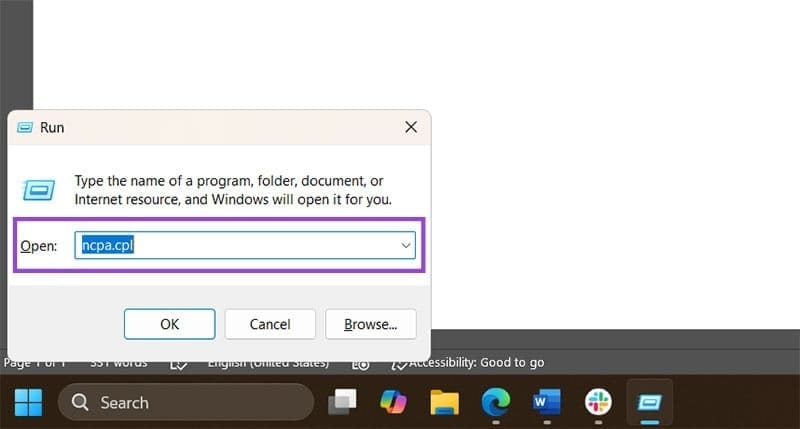
- Launch “Run” from the Start icon’s right-click menu, or press “Windows + R.”
- Enter “ncpa.cpl” and press “Enter.”
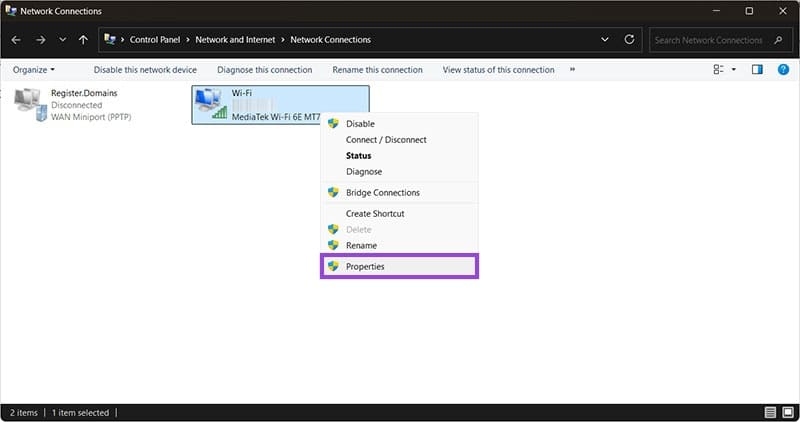
- Right-click the active network and choose “Properties.” Its status will display the network name.
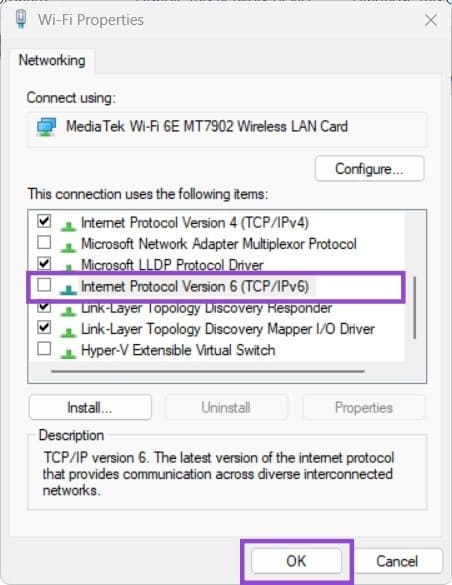
- Find and clear “Internet Protocol Version 6 (TCP/IP v6),” then select “OK.”
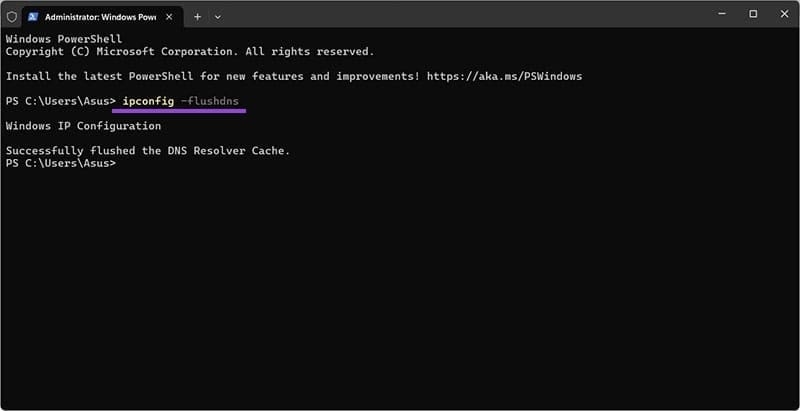
- Flush the DNS cache: open Command Prompt (Terminal) as an Admin, available through the Start icon’s right-click menu, and run “ipconfig /flushdns” or “ipconfig -flushdns.”
Fix 2 – Adjust the registry
Incorrect registry settings, often resulting from updates or system settings, can make the PC test the wrong IP addresses for internet access. The registry approach below includes an alternative using Google’s DNS instead of Microsoft’s.
- Open “Run,” enter “regedit,” and press “Enter.” Approve the User Account Control prompt.
- Navigate to HKEY_LOCAL_MACHINE\SYSTEM\CurrentControlSet\Services\NlaSvc\Parameters\Internet. To paste this path into the address field at the top, first drag across the existing address to select it.
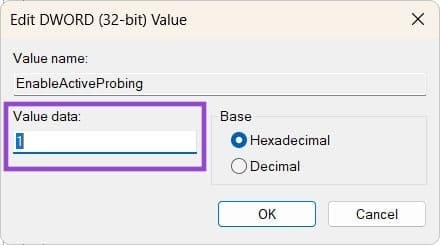
- Double-click “EnableActiveProbing” in the right pane, set its value to 1, and select “OK.”
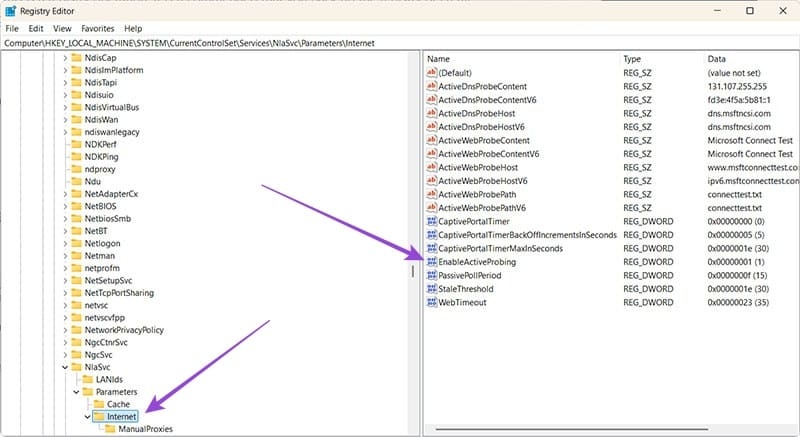
- Set the entries in that pane to the following values:
- ActiveDnsProbeContent: 131.107.255.255
- ActiveDnsProbeContentV6: fd3e:4f5a:5b81::1
- ActiveDnsProbeHost: dns.msftncsi.com
- ActiveDnsProbeHostV6: dns.msftncsi.com
- ActiveWebProbeContent: Microsoft Connect Test
- ActiveWebProbeContentV6: Microsoft Connect Test
- ActiveWebProbeHost: www.msftconnecttest.com
- ActiveWebProbeHostV6: ipv6.msftconnecttest.com
Alternatively, use these entries:
- ActiveDnsProbeContent (REG_SZ): 8.8.4.4
- ActiveDnsProbeContentV6 (REG_SZ): 2001:4860:4860::8844
- ActiveDnsProbeHost (REG_SZ): dns.google
- ActiveDnsProbeHostV6 (REG_SZ): dns.google
- ActiveWebProbeHostV6 (REG_SZ): www.msftconnecttest.com
- Navigate to HKEY_LOCAL_MACHINE\SOFTWARE\Policies\Microsoft\Windows\NetworkConnectivityStatusIndicator.
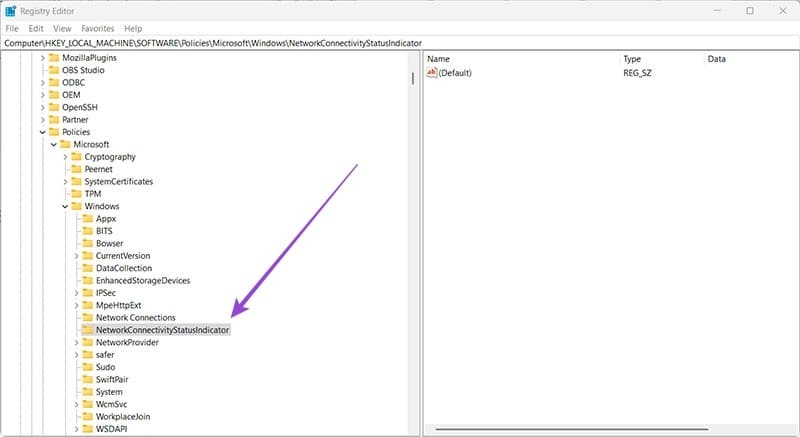
- If “NoActiveProbe” exists, change its value to 0 or delete the entry.
- Exit Registry Editor. A PC restart may be necessary.
Fix 3 – Repair damaged system files
If the connection worked normally before this warning began appearing, a corrupted file could be responsible. Try repairing it through Terminal.
- Launch Terminal as an Admin.
- Run “sfc /scannow,” wait for it to finish, then run “dism /online /cleanup-image /restorehealth.”
If Windows finds corrupted files but cannot repair them, a clean install may be needed.

