
Troubleshooting a DNS Server Not Responding Error
A DNS error can prevent websites from loading even when your Internet connection works. Follow these fixes in order, from restarting your equipment and clearing cached lookups to changing DNS servers and checking drivers.
What We Know
A "DNS server not responding" error indicates that your device cannot reach the service that converts website names into IP addresses. Your Internet connection may still work, but your browser cannot locate websites without that translation.
Understanding DNS Failures
DNS stands for Domain Name System. It converts names such as google.com into the numerical addresses computers use. The error appears when your device requests a lookup but receives no response.
Most DNS problems can be cleared quickly with a router and device restart or a DNS cache flush. Other possible remedies include changing to a public DNS service, checking security software, and investigating recurring router problems.
Check Whether DNS Is Responsible
Enter a direct IP address, such as 8.8.8.8, in your browser's address bar. If a page opens, the Internet connection is working but DNS resolution is not. If nothing opens, the connection itself may be at fault instead.
Common Reasons DNS Stops Responding
- Damaged or outdated cache: Stored DNS lookups can become incorrect and cause errors.
- ISP DNS problems: The server assigned by your provider may be offline or overloaded.
- Router trouble: Glitches, old firmware, or insufficient hardware capacity can interrupt DNS requests across your network.
- Security software: Overly restrictive antivirus or firewall rules may block DNS traffic.
- Outdated drivers: An old network adapter driver can interfere with communication with the DNS server.
Try These DNS Fixes in Order
Begin with the quickest option and continue only if the error remains.
Fix 1: Restart the Router and Your Device
A restart clears the router's temporary memory and stale DNS data, then establishes a new connection to your ISP's DNS server. This resolves most home users' DNS errors.
- Disconnect the router from its power outlet.
- Leave it unplugged for 30 seconds, then reconnect it.
- Wait for startup to finish, usually 60-90 seconds.
- Restart your device and open a website.
Fix 2: Clear the DNS Cache
Clearing locally saved lookups forces fresh DNS requests. This can resolve intermittent errors even when the DNS server itself is functioning.
On Windows:
- Press the Windows key, enter cmd, and choose "Run as administrator."
- Enter ipconfig /flushdns and press Enter.
- Reopen your browser and test again.
On Mac:
- Launch Terminal from Applications > Utilities.
- Enter sudo dscacheutil -flushcache; sudo killall -HUP mDNSResponder and press Enter.
- Supply your password if requested, then reopen the browser.
Fix 3: Use a Public DNS Service
If your ISP's DNS is unavailable or slow, a public alternative may restore access. Google's 8.8.8.8 and 8.8.4.4 and Cloudflare's 1.1.1.1 are free, widely used options that are generally more stable than ISP defaults.
On Windows:
- In Settings, open Network and Internet.
- Choose your connection, then select "Edit" under DNS settings.
- Select Manual, turn on IPv4, and set the preferred address to 8.8.8.8 and the alternate to 8.8.4.4.
- Save the changes and reconnect.
On Mac:
- In System Settings, open Network.
- Choose the active connection and select Details.
- Open the DNS tab, select "+" and enter 8.8.8.8 and 8.8.4.4.
- Select OK and apply the changes.
Fix 4: Review Firewall and Antivirus Rules
Security software can begin blocking DNS after an update or because its rules are too restrictive. Briefly disable the firewall or antivirus and test a website. If access returns, look for rules blocking DNS traffic on port 53 and add an exception. Re-enable the security software immediately after the test.
Fix 5: Update or Reinstall the Network Adapter Driver
This Windows-only fix addresses outdated software connecting the operating system to network hardware. Try it if the preceding steps have not helped.
- Press the Windows key, search for Device Manager, and open it.
- Expand "Network Adapters" and right-click the adapter.
- Choose "Update driver," followed by "Search automatically for drivers."
- Restart the computer and check connectivity.
If the update makes no difference, uninstall the device and restart the computer. Windows reinstalls its driver automatically.
Keep Your Preferred DNS Settings
Most devices use ISP-assigned DNS automatically. The Windows and Mac changes in Fix 3 remain saved until you change them, allowing you to keep using the public service if it resolved the problem.
On iPhone:
- Open Settings, then Wi-Fi.
- Select the info icon beside your network.
- Open "Configure DNS," choose Manual, and add 1.1.1.1 or 8.8.8.8.
- Select Save.
On Android:
- In Settings, open Network and Internet.
- Select Private DNS, then "Private DNS provider hostname."
- Enter 1dot1dot1dot1.cloudflare-dns.com for Cloudflare or dns.google for Google.
- Select Save.
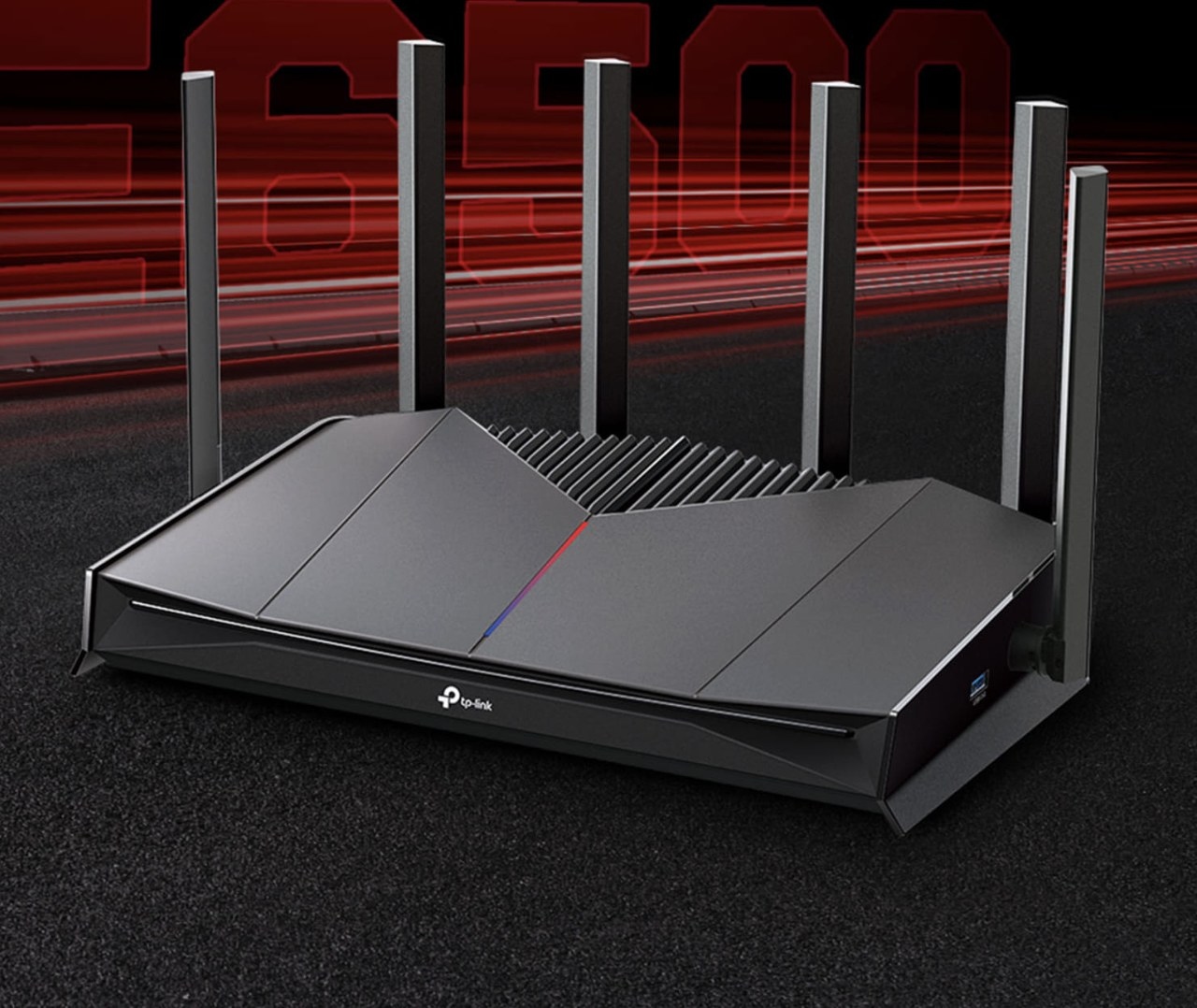
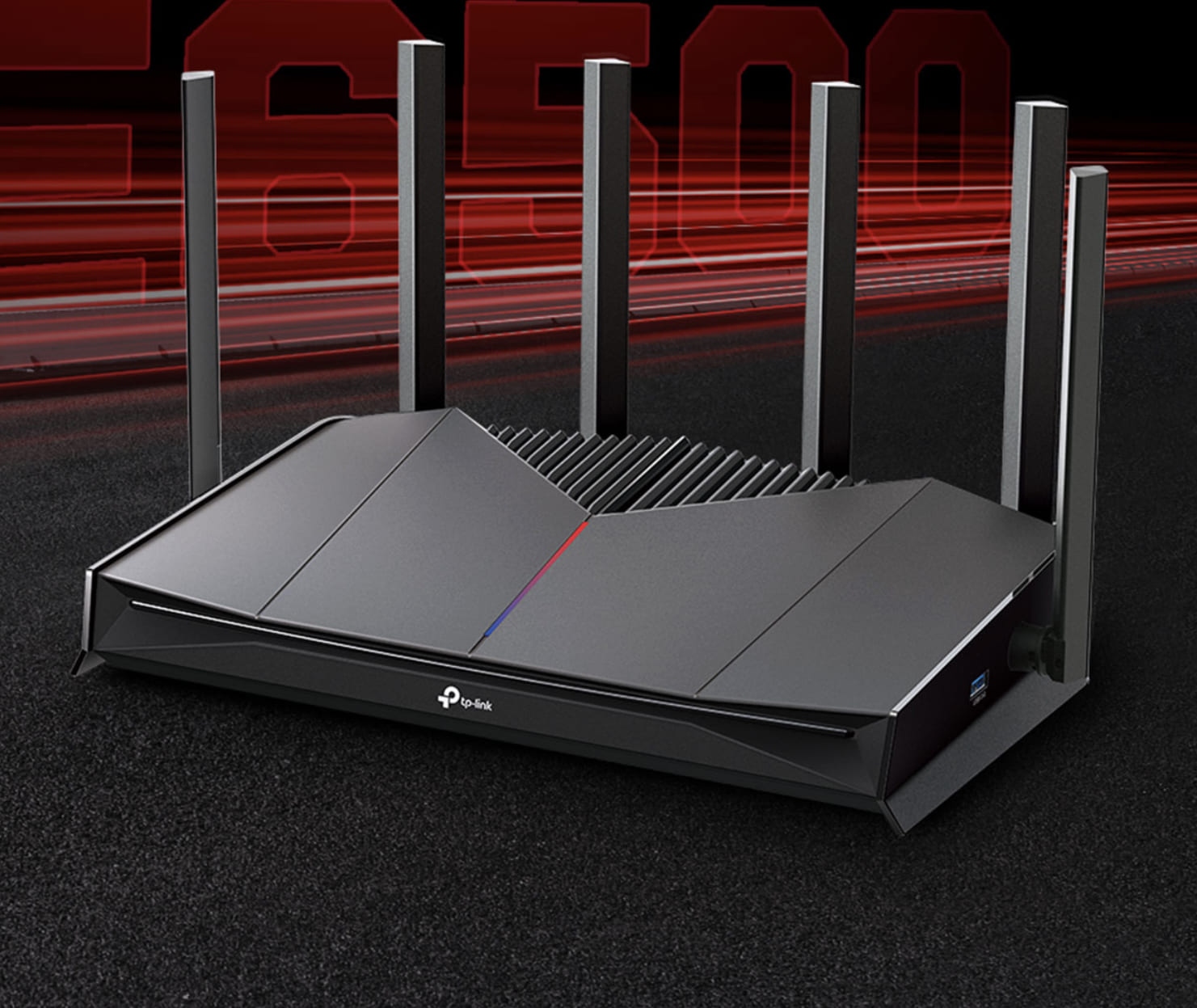
TP-Link owners can also change DNS on the router so that connected devices automatically use the preferred service. Consult the instructions for changing DNS on a TP-Link wireless router or TP-Link Deco.
Investigate Recurring Router Problems
If device-level fixes do not stop repeated errors, the router may be responsible. Older or underpowered hardware can struggle with DNS requests, especially when many devices are connected.
TP-Link routers are designed to manage connections across devices. Some models include built-in VPN support for greater control and privacy of DNS traffic. A network-level VPN covers connected devices without separate software on each one.
Address Slow DNS Lookups
Slow lookups differ from complete DNS failures: the Internet works, but pages take too long to begin loading. An overloaded or geographically distant ISP DNS server is often responsible.
Changing to a faster public service is the most effective remedy. Cloudflare's 1.1.1.1 is widely cited among the fastest public options; Google's 8.8.8.8 is another reliable choice. If delays continue, a newer router may improve response times.
Reduce the Risk of Future Errors
- Keep router firmware current to address bugs affecting DNS. Check the admin settings regularly or turn on automatic updates.
- Use a reliable public DNS service to reduce exposure to ISP DNS outages and slowdowns.
- Consider built-in VPN support. VPN routers encrypt DNS requests for connected devices and send them through secure servers, adding privacy and protection that can help prevent DNS issues.
What to Do If the Error Remains
- Contact your ISP to check for outages or account-specific DNS configuration problems.
- Open the router's admin panel and install available firmware updates. Old firmware can cause recurring problems that device-level changes cannot fix.
- Consider replacement hardware if the router is several years old and errors keep returning. TP-Link users should review the router DNS settings guide before upgrading to check their existing configuration.
Frequently Asked Questions
What should I try first when DNS is not responding?
Restart the router and device first; this resolves most DNS errors in under two minutes. If the problem returns, clear the DNS cache, then try public DNS and the remaining fixes in order.
How can I reset DNS?
Clear cached lookups with ipconfig /flushdns on Windows or the Mac Terminal command above. Alternatively, manually choose Google or Cloudflare DNS, or restart the router to refresh its DNS connection to the ISP.
What are 8.8.8.8 and 8.8.4.4 used for?
These are Google's free public DNS servers. Configuring them sends your device's lookups to Google rather than the ISP's default service, providing a widely used, reliable alternative during ISP DNS slowdowns or outages.

