
Restore Deco Internet Access with MAC Clone
An ISP may block Deco if it expects a previously registered computer or router MAC address. These procedures explain how to clone that address manually or select an old router through the Deco app, using Deco M5 as the example.
What We Know
Some Internet Service Providers (ISPs) register the MAC address of the first device connected to their modem. Replacing that device with Deco can prevent Internet access because the address no longer matches. MAC Clone copies the registered address so the modem recognizes Deco. The procedures below use Deco M5.
Situation 1: No Previous Router Is Available
- Disconnect the main Deco from the modem and connect your computer directly instead. Confirm that the computer has Internet access; if it does not, contact your ISP.
- Find and record the computer's MAC address, also known as its Physical Address.
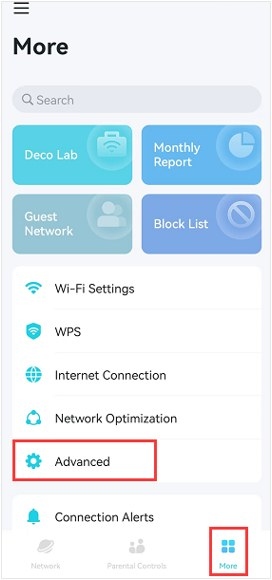
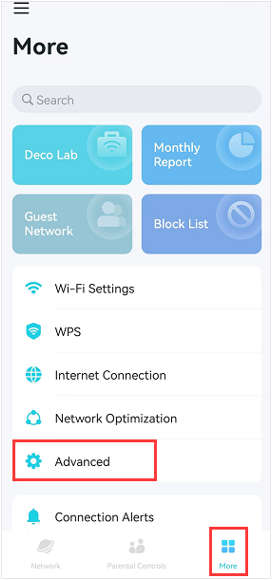
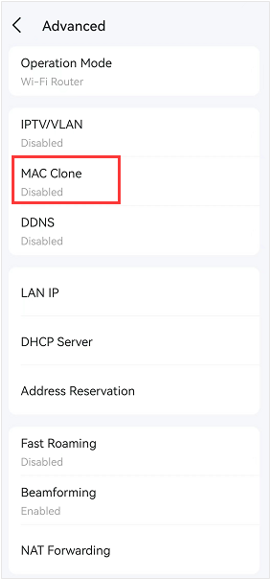
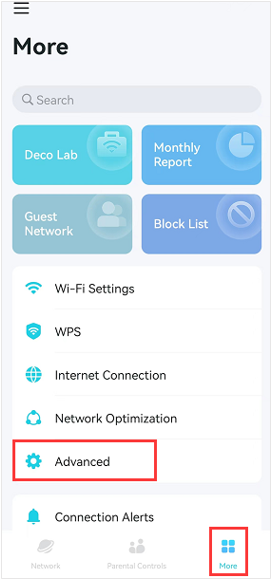
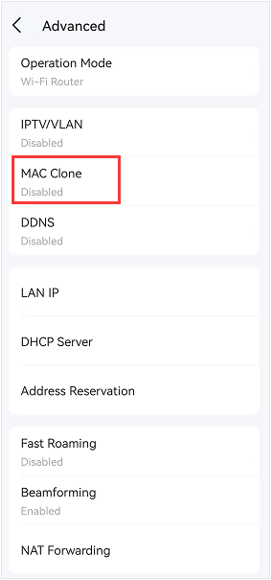
- Disconnect the computer, reconnect the modem to the main Deco, and connect your phone to Deco's Wi-Fi. In the Deco app, open More > Advanced > MAC Clone.
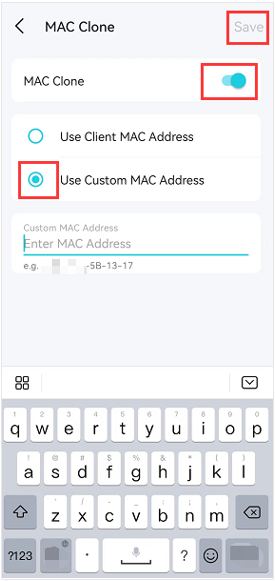
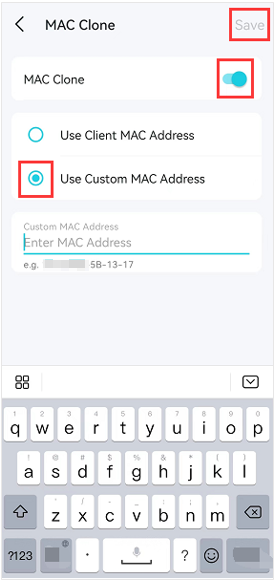
- Turn on MAC Clone. The choices are Use Client MAC Address and Use Custom MAC Address. Choose Use Custom MAC Address, manually enter the computer's address in XX-XX-XX-XX-XX-XX format, and tap Save. Test Deco's Internet connection.
Why Use Client MAC Address Does Not Work Here
Because of its WAN/LAN auto-sensing design, Deco cannot assign a valid IP address to a client on its other Ethernet port when Internet access is unavailable. You therefore need to find the client's MAC address and enter it manually.
Situation 2: You Still Have the Old Router
Use either of the following methods.
Method 1: Retrieve the Address from the Old Router's Web Interface
- Disconnect the main Deco from the modem. Attach the old wireless router to the modem, then connect a PC to that router.

- For this example, use Archer C7_V5. Connect to the Archer router over Wi-Fi or Ethernet, open a browser, visit https://tplinkwifi.net/, and sign in with your credentials. If the old router is not a TP-Link model, ask its support team for assistance.
- Open Advanced > Status. Find MAC Address in the Internet section and take a picture of it.
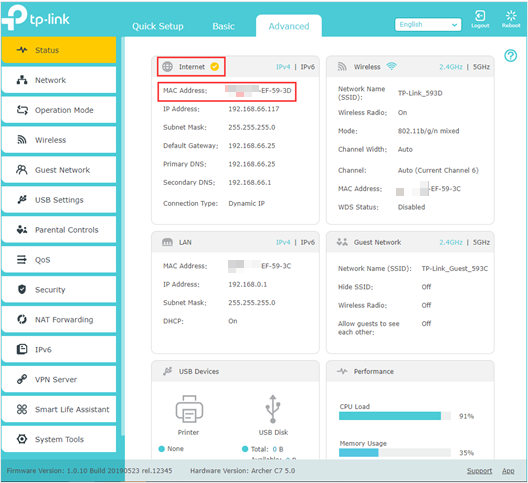
- Disconnect the old router and reconnect the main Deco to the modem. Join Deco's Wi-Fi on your phone and open More > Advanced > MAC Clone in the Deco app. Enable MAC Clone, choose Use Custom MAC Address, enter the old router's Internet MAC address, and tap Save. Check whether Deco now works.
Method 2: Choose the Old Router in the Deco App
- Connect the main Deco to the modem. Set up the satellite Deco and connect it to the main Deco over Wi-Fi. Next, attach the old router's WAN/Internet port to the satellite Deco. Connect your phone to the main Deco's Wi-Fi.
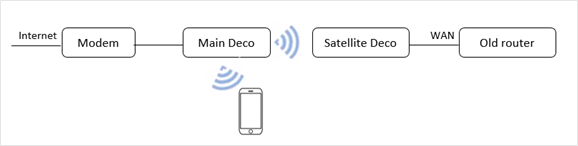
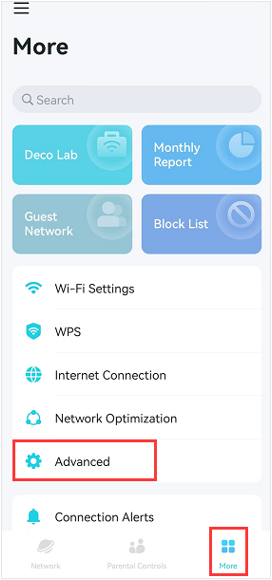
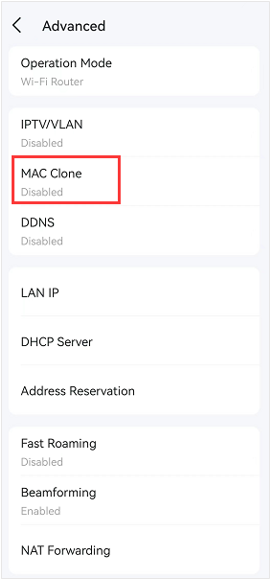
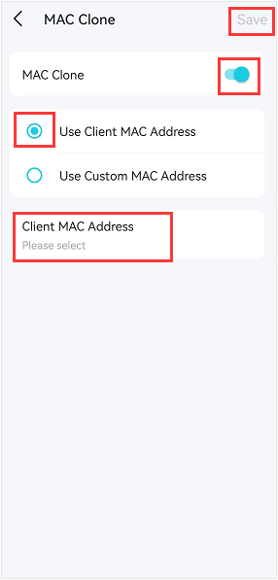
- On the phone, open the Deco app and navigate to More > Advanced > MAC Clone. Enable MAC Clone and choose Use Client MAC Address. Tap Client MAC Address, select the old router's MAC address, then tap Save. Test Deco's connection.
For additional product details, download the manual from the Download Center.

