
Troubleshoot a TP-Link Router with a WAN IP but No Internet
Editorial Team
No Internet Access
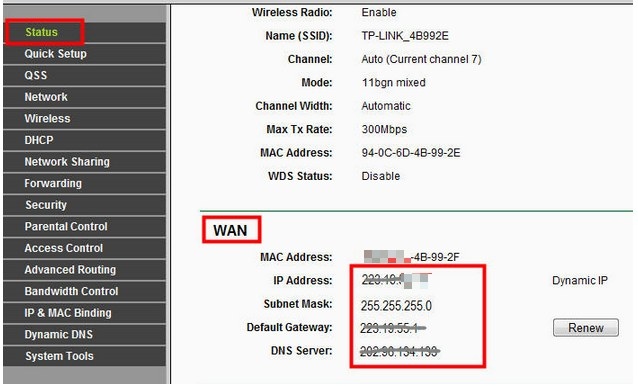
A valid WAN IP address does not always mean Internet access works after setup. Verify the modem connection, then try manual DNS, the specified power-cycle procedure, and finally a reset and manual setup.
What We Know
If your TP-Link router receives a valid WAN IP address but has no Internet access after setup, first bypass the router and connect a computer directly to the modem to confirm that Internet service works.
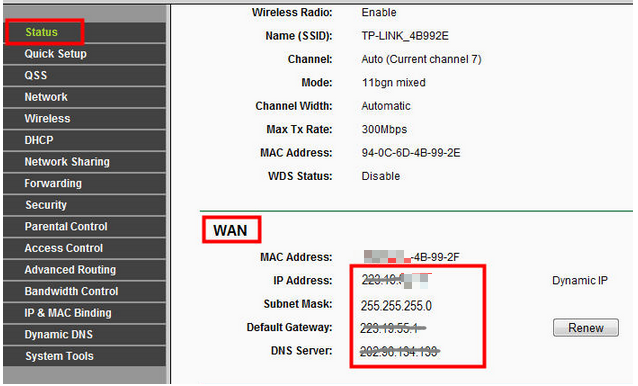
The WAN IP Address can be checked in the router's web interface.
Solution 1: Configure DNS Manually
- Open DHCP -> DHCP settings, enter 8.8.8.8 in Primary DNS, and click Save.
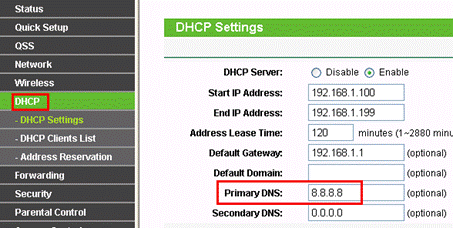
Google provides 8.8.8.8 as a free, safe public DNS server.
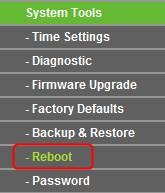
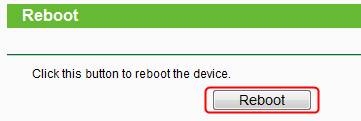
- To complete the change, open System Tools -> Reboot and click the Reboot button.
|
|
|
Solution 2: Power-Cycle the Modem and Router
- Turn off the modem and TP-Link router and leave both off for 1 minute.
- Disconnect the modem's power cord and unscrew its coaxial cable.
- Connect the modem to the router's WAN port and ensure that the router is on.
- Reconnect power to the modem, keeping the coaxial cable disconnected.
- After 3-5 minutes, reconnect the coaxial cable.
- Allow the modem to reconnect, then check the IP address and Internet service.
Solution 3: Reset and Manually Configure the Router
- Press and hold Reset for more than 10 seconds to reset the router.
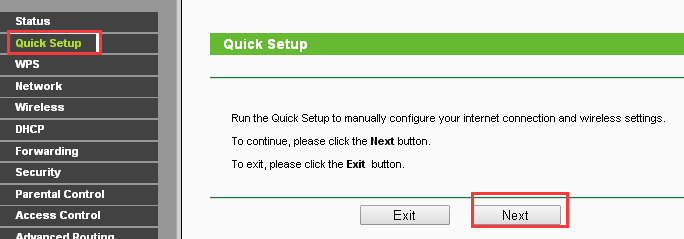
- Use Quick Setup to configure the router manually again.
Tags

