
Fix No Internet on Windows When Connected to TP-Link Wi-Fi
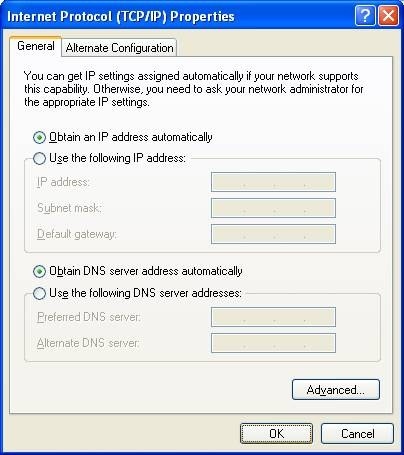
If Windows connects to your TP-Link wireless network but cannot reach the Internet, check automatic addressing, the router's WAN status, and DNS. Follow the checks in order, then reboot and contact support if needed.
What We Know
If your wireless router is set up and Windows connects to its Wi-Fi but cannot access the Internet, work through these checks in order.
Step 1: Check Automatic Addressing
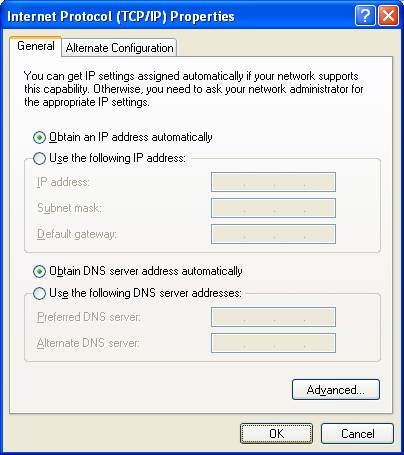
Confirm that the computer's wireless connection is configured to obtain both an IP address and a DNS server address automatically.
Step 2: Inspect the Computer's IP Address
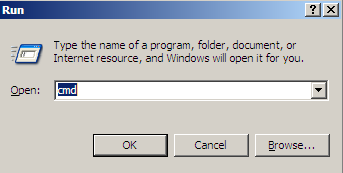
Press the Windows key  and R together to open Run. Enter CMD, select OK, then enter ipconfig –all in the command window and press Enter.
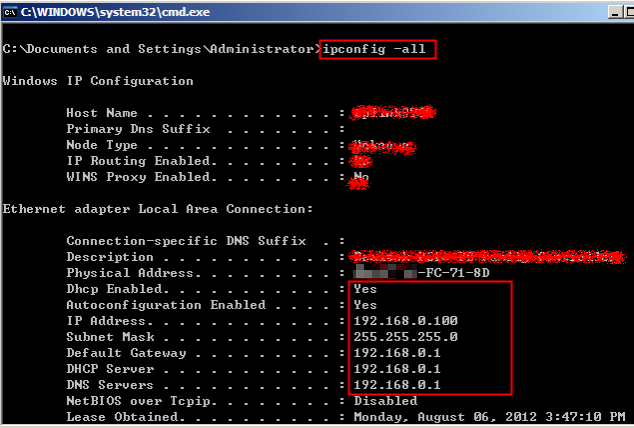
If the address is 169.254.xxx.xxx, enter ipconfig –renew to request another address. If you still do not receive a proper address, verify that DHCP is enabled on the router. Use a computer or tablet already connected to the router to sign in at http://tplinklogin.net (or http://192.168.0.1).
Step 3: Open Router Management
Visit http://tplinkwifi.net in a browser. Enter the login username and password, then click ok. Both default credentials are admin.
Step 4: Examine WAN Status
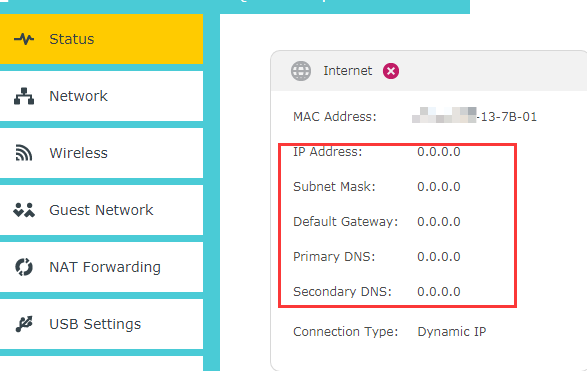
On the Status page, check the WAN section for an IP address. An address indicates that the router is configured successfully and connected to the Internet. If none appears, inspect the physical connection or ask your service provider to check the line.
Step 5: Test Connectivity and DNS
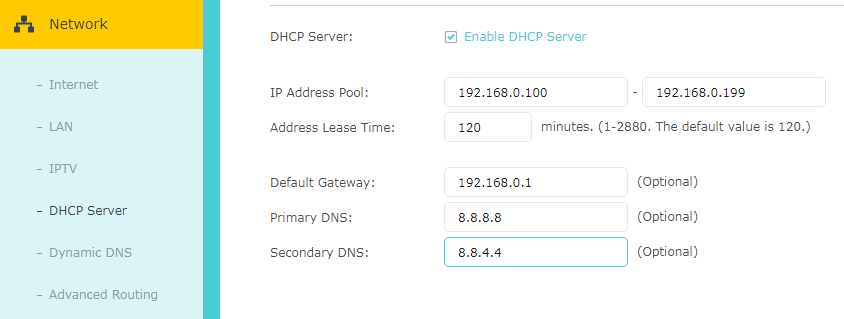
If WAN has an IP address, ping a public IP address such as 8.8.8.8. If the ping fails, release/renew the WAN IP address. If it succeeds, try opening a website. If websites still fail, go to DHCP->DHCP Settings, enter 8.8.8.8 as the primary DNS and 8.8.4.4 as the secondary, then click Save.
Step 6: Restart the Router
Reboot the router, then test Internet access again.

If the problem remains, contact TP-Link support for further assistance.

