
How to Fix One Device Failing to Connect to TP-Link Wi-Fi
If other devices connect to your TP-Link Wi-Fi but one cannot, the problem may lie with that device or its settings. Work through these five checks, from testing another network to power cycling the equipment.
What We Know
When a TV, printer, or other device cannot use your TP-Link wireless network while everything else connects normally, the device or its configuration is the likely cause. Follow these checks in order.
Troubleshooting a Single Device
Step 1: Try a Different Network
Test whether the device connects to another network. If it cannot connect to any network, the problem is more likely with the device than the router. Contact the device manufacturer's support.
Step 2: Review the Device's IP Configuration
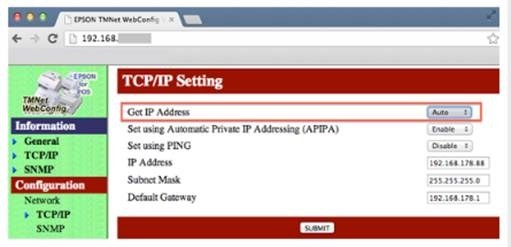
Check whether the device obtains its IP address automatically through DHCP (Dynamic Host Configuration Protocol). DHCP supplies clients with the information they need from the wireless router to access the internet.
If you use a static IP address instead, you must manually supply the IP address, subnet mask, default gateway, and DNS server.
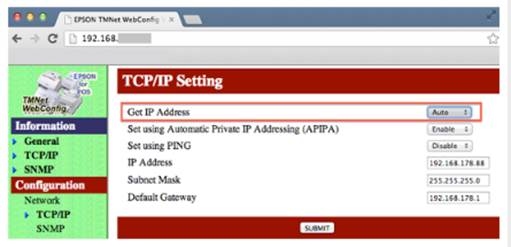
For example, on an Epson Printer, open the printer setup screen, change “Get IP Address” to “Auto”, and submit the change.
Step 3: Address the Connection Error
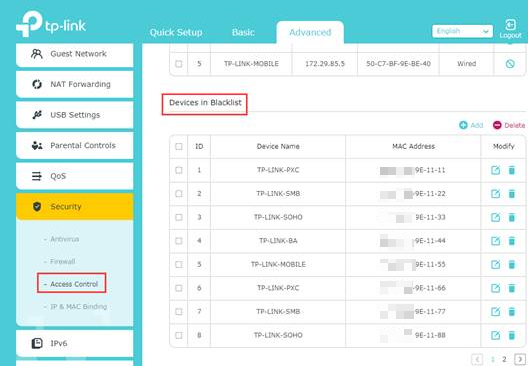
- If the device reports that it cannot connect or join, re-enable its wireless adapter and try again. Next, try removing the saved wireless network profile. If the problem continues, check the router for Access Control or MAC filtering and make sure the device is not blacklisted.
- If the error indicates an incorrect password, verify the wireless password on the router.
Step 4: Change the Router's Wireless Settings
Some devices have difficulty with particular wireless channels or channel widths. Changing the channel or channel width on your TP-Link router may restore the connection.
Step 5: Power Cycle the Equipment
- Unplug the client device, modem, and wireless router from their power outlets. Simply switching them off is not enough. Leave everything unplugged for at least 60 seconds.
- Reconnect the modem and router to power and allow them a few moments to start.
- Once the modem and router lights return to normal, plug in the client device and turn it on.
For details about your product's functions and configuration, download its manual from the Download Center.

