
Ways to Measure Wi-Fi Signal Strength in Windows 11
Windows 11's Wi-Fi bars provide only a rough indication of reception. These free tools and a built-in command offer more detailed readings to help compare locations and troubleshoot weak connections.
What We Know
The Wi-Fi icon in the taskbar gives a rough indication of reception, but its bars do not provide a precise reading. Measuring signal strength can help you compare locations at home or in the office and investigate slow connections, even when your ISP provides a fast service. Thick walls, weak reception, and other factors can limit the speed you actually receive.
Understanding signal measurements
Advanced tools report Wi-Fi strength in dBm or milliwatts rather than bars. On the negative scale described here, readings range from -30 to -90: -30 represents the strongest reception, while -90 is very poor. Around -65 dBm is suitable for streaming or other bandwidth-heavy activities.
Some tools instead use RSSI, or Received Signal Strength Indicator, which is not a standardized measurement. Conversion formulas are included below. Compare each tool's features, restrictions, and ease of use before choosing one.
Fing
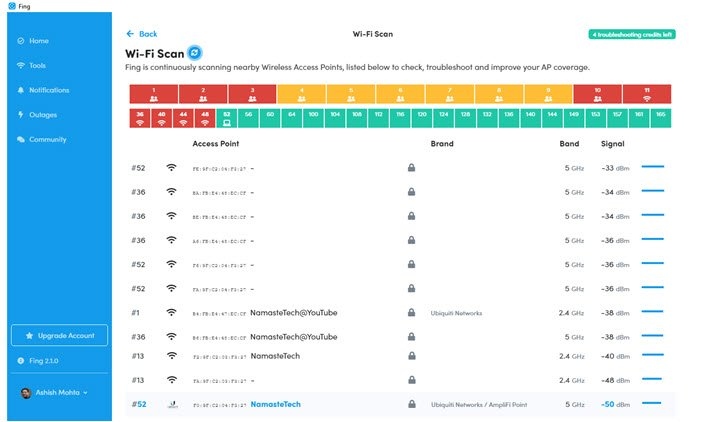
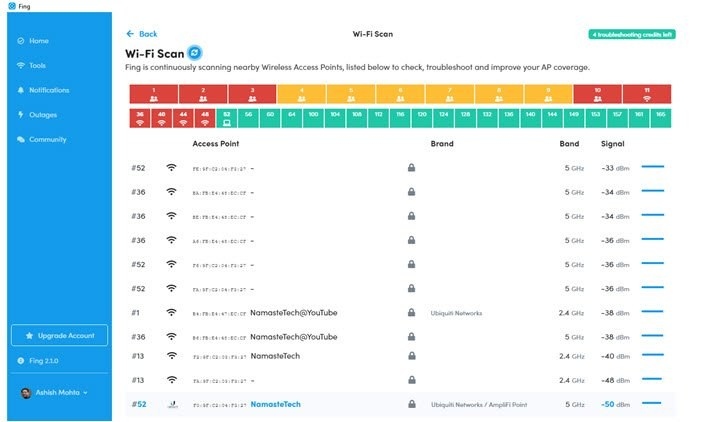
The source recommends Fing for measuring signal strength and producing a detailed troubleshooting report. After installation, open the tools section and start a Wi-Fi scan to check nearby Wi-Fi devices and their signal strength.
Use is limited to five attempts per day, although each scan monitors strength live. The smartphone application is also free and can help check reception at a specific location. Get Fing.
Wi-Fi Analyzer
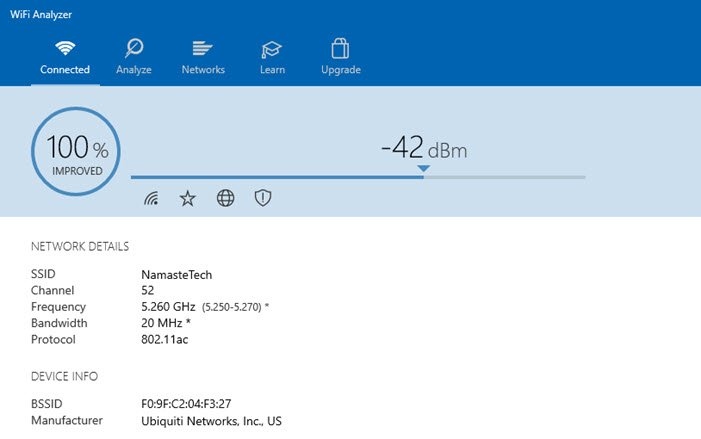
This free Microsoft Store tool turns a PC, laptop, tablet, or mobile device into a wireless network analyzer. It can help locate Wi-Fi problems, choose a channel, or find a suitable position for a router or access point. Launch it, grant the requested permission, and it displays the results without further interaction.
More extensive network analysis and issue identification belong to its premium offering, but signal-strength checks have no usage limit. Get Wi-Fi Analyzer from Microsoft Store.
NirSoft’s WifiInfoView
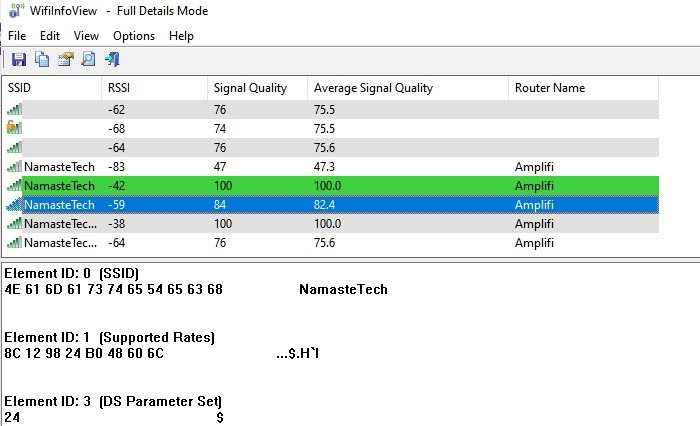
WifiInfoView runs the NetSh command in the background and presents its output in a more accessible format. It also scans neighboring routers, helping you assess whether your nearby router provides adequate reception.
It reports RSSI rather than dBm. The source provides this conversion:
RSSI - 95 = signal strength in dBm
The source author reports an RSSI reading of -42 and describes it as equivalent to -53dBm, considering the result close enough.
Check strength with the NetSh command
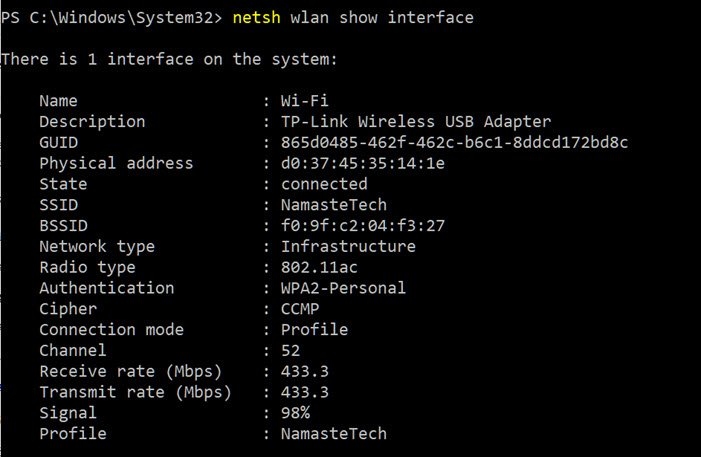
No additional software is needed for this method. First connect to the Wi-Fi network you want to test, then enter the following in a CMD window:
netsh wlan show interface
The output includes GUID, Physical Address, State, SSID, BSSID, Network Type, Radio Type, Authentication, Cipher, Channel, Receive/Transmit rate, and signal strength. This detailed information is not available through the network and sharing center or the settings app.
Signal strength appears as a percentage, which the source describes as the most accurate measure of strength. Repeat the command as often as needed and move the device slightly to compare readings.
The illustrated 98% reading looks strong, but converting it gives a different perspective:
dBm = (quality / 2) – 100
At 98%, the calculation is 98/2-100 = -51. The source compares that with the Fling tool report of -50dBm.
Vistumbler
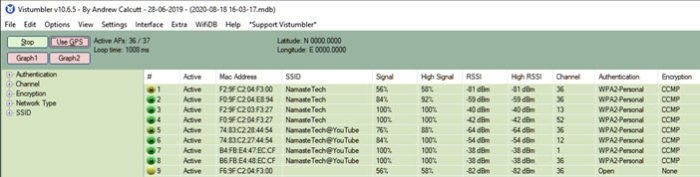
Vistumbler is free software that scans nearby access points and lists their signal strength, channels, MAC addresses, and other details. Like NirSoft’s tool, it presents information about surrounding networks, but it can also incorporate GPS to generate a map.
Going beyond those functions takes some technical effort. Less technical users may prefer another tool or restrict Vistumbler to the features they need. Get Vistumbler.
WirelessConnectionInfo
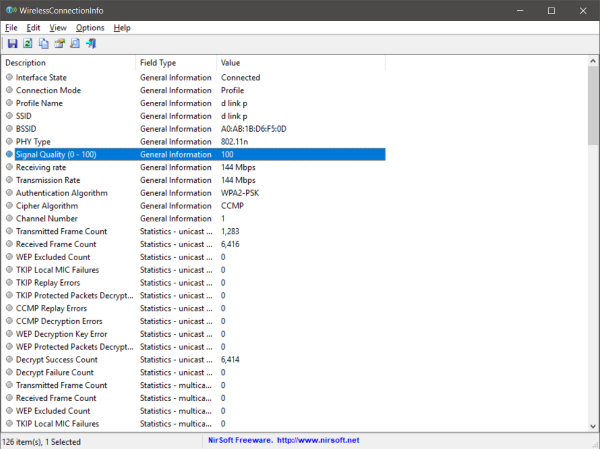
For a graphical alternative to a terminal window, WirelessConnectionInfo displays details about the connected wireless network, including signal strength. This freeware application provides more information than the command-line method and can export an HTML report for later sharing.
Like other NirSoft utilities, it offers visual customization and supports common keyboard shortcuts. Press F5 to refresh the statistics and signal reading. Download WirelessConnectionInfo.
Using the results to improve reception
Compare readings around your home or office to find a stronger connection or a better router location. You can also leave the computer in one place, reposition the router, and check how the signal changes.
The source suggests these basic measures:
- Connect to a 5 GHz access point, which it describes as offering the strongest signal.
- Consider replacing a router that does not support 5 GHz mode; most modern routers support it.
- If the main router is too far away and there are many blind spots, consider a mesh system such as AmpliFi Mesh routers.
No single change guarantees peak strength. Ethernet aims to provide the best speed, but it is not always available.
The AmpliFi Instant Router is a compact mesh Wi-Fi system intended for homes and small offices seeking straightforward setup and fewer dead zones. It provides consistent multi-room coverage and seamless roaming between nodes. Its minimalist hardware has a small footprint and LED network-status indicators. Guest networking and app-based management are supported, but advanced web-based controls and wired connectivity are limited.
Homedale for Windows is another option for managing WiFi strength.

