
Set Up USB Printer Sharing on a TP-Link Wi-Fi Router (New Logo)
Share a USB printer among computers connected to your router using TP-Link USB Printer Controller. The setup requires printer drivers and the utility on every computer that will print.
What We Know
These instructions are not intended for printers with an Ethernet port or Wi-Fi capability. For those models, contact the printer manufacturer's technical support.
Printer Sharing allows multiple computers connected to the router to use the same printer.
1. Install the printer driver
Install the printer's driver on every computer that will use it. If you do not have the driver, obtain it from the printer manufacturer.
2. Attach the printer
Use a USB cable to connect the printer to the router's USB port. Allow several seconds for the USB LED to remain steadily lit.
3. Install TP-Link USB Printer Controller Utility
Each computer that needs access to the shared printer must have this utility installed.
- Visit https://www.tp-link.com/en/support/download/archer-a7/#Utility.
- Choose PC Utility for Windows or Mac Utility for Mac, then download and extract the installation file.
- Open the extracted folder. Run TP-Link USB Printer Controller Setup on Windows or TP-Link UDS Printer Controller Installer on Mac to install the utility.
4. Configure printer access
On every computer that will print, configure the shared device as an Auto-Connect Printer.
- Launch USB Printer Controller by double-clicking its desktop icon.
- Select the shared printer.
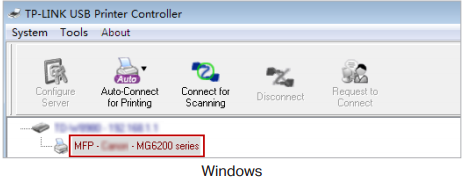
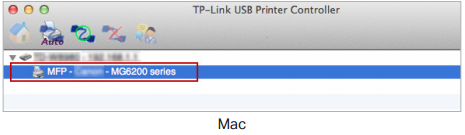
- Open the Auto-Connect for printing tab's drop-down list and choose Set Auto-Connect Printer.
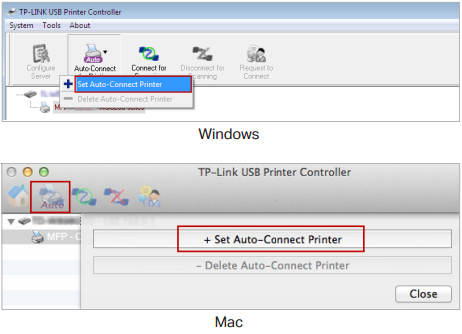
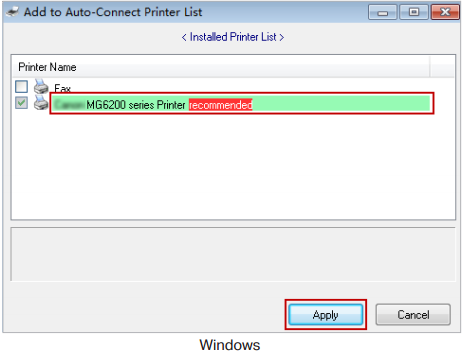
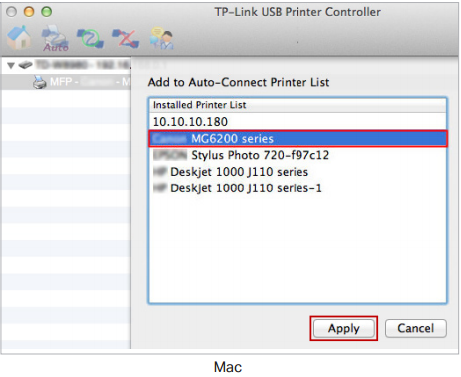
- Choose the shared printer, then select Apply.
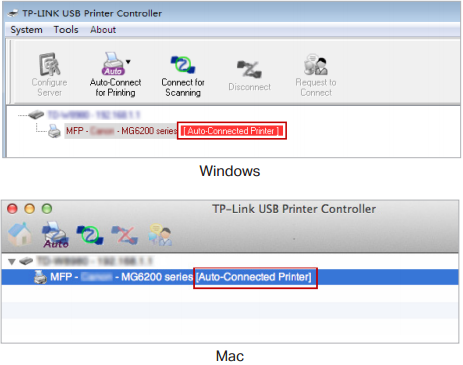
- Check that the printer is labeled Auto-Connect Printer. It is now ready to print.
Scanning and compatibility notes
The Print Server also lets multiple clients share the scanning function of MFPs (Multi-Function Printers). In TP-Link USB Printer Controller, right-click the printer and choose Network Scanner. Complete the scan using the instructions in the window that opens.
TP-Link states that its routers support a large proportion of USB printers from major brands, including HP, Canon, Epson, Brother, Samsung and Lenovo. If a printer still does not work with the router, compatibility may be the cause.
For more information about individual features and settings, obtain your product's manual from the Download Center.

