
Configure Router MAC Filtering for Range Extender Clients in the Green UI
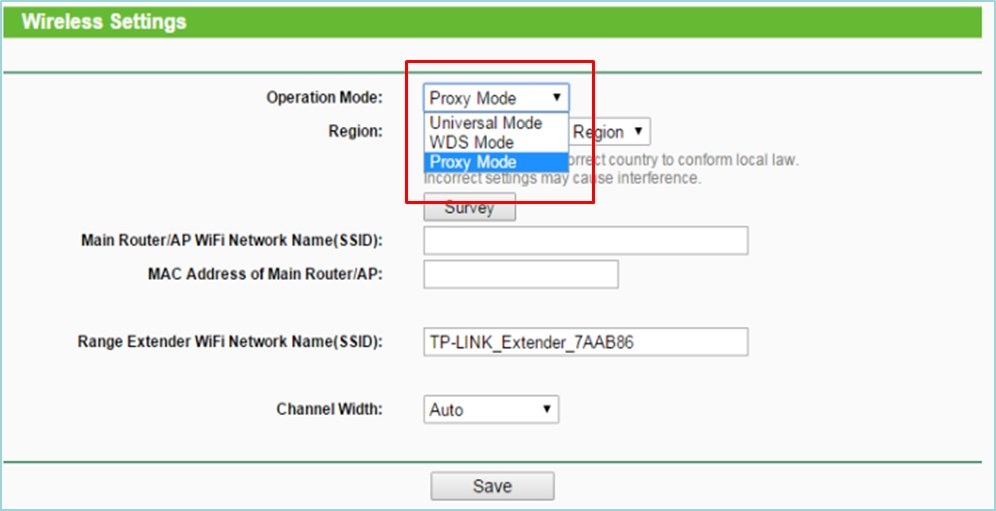
MAC filtering for devices behind a Range Extender depends on whether the extender uses Proxy, Universal, or WDS mode. This guide explains which MAC addresses to enter on a Green UI router and how to identify them.
What We Know
MAC filtering on the main router may not work as expected for clients connected through a Range Extender because the addresses visible to the router depend on the extender’s operating mode.
This guidance applies only to Green UI routers. Blue UI routers use Access control instead of MAC filtering.
Before you begin
Confirm that the Range Extender is successfully connected to the router, then check its operating mode.
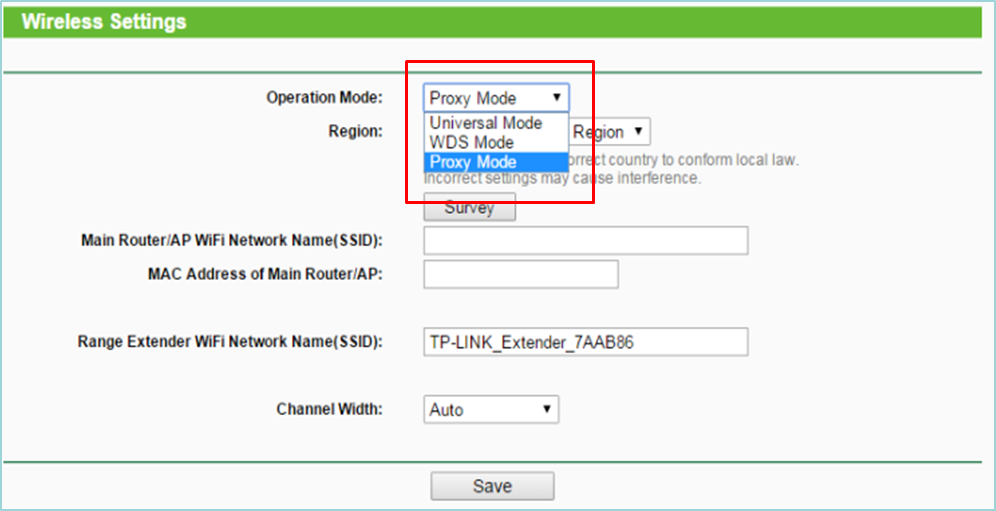
Mode limitations: Most RE models default to Proxy mode and cannot change modes. RE355 and RE450 support only Universal Mode. TL-WA830RE_V1,V2/TL-WA730RE/TL-WA750RE support Universal Mode and WDS mode. TL-WA850RE_V1,V1.2/TL-WA860RE, except the EU version, can switch among all three modes.
The examples use RE210 and C7 with the following network topology.

Scope: These instructions control clients connected to the Range Extender, not devices connected directly to the router.
Part A: Proxy Mode
How Proxy Mode changes MAC addresses
In Proxy Mode, the Range Extender automatically generates a virtual MAC address for each client. The router sees that virtual address rather than the client’s real address, so filtering entries must use the virtual address.
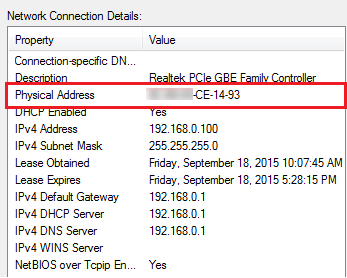
- Check the computer’s real MAC address. The example shows XX-XX-XX–CE–14-93.
- Find the computer’s address on the router’s web page. This is its virtual MAC address, shown as XX-XX-XX–CE–14-93.
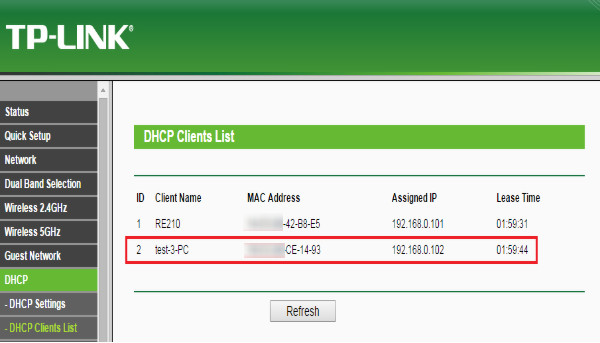
- Compare the addresses: the last 24bits of a client’s virtual address match the last 24bits of its real address, even though the router sees only the virtual address.
Find each client’s virtual MAC address
- Record the real MAC addresses of the client devices you want to identify.
- Sign in to the router’s Web GUI and open “DHCP Clients List.” Match the last 24bits of each listed address against the real addresses you recorded, then note the matching virtual addresses.
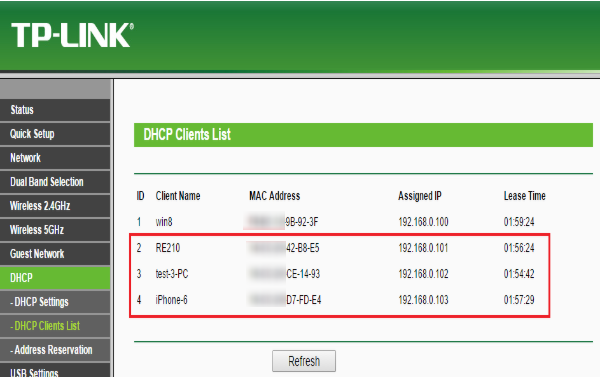
If you cannot locate “DHCP Clients List,” ask the router vendor for assistance.
Identify the Range Extender’s MAC addresses
A single-band Range Extender such as TL-WA850RE has one 2.4GHz MAC address. A dual-band extender has separate addresses for 2.4GHz and 5GHz.
- In the router’s Web GUI, open “Wireless 2.4GHz” > “Wireless Statistics.” Compare the connected devices’ addresses with the address printed on the extender’s back. In this example, XX-XX-XX-42-B8-E5 is the extender’s 2.4GHz address.
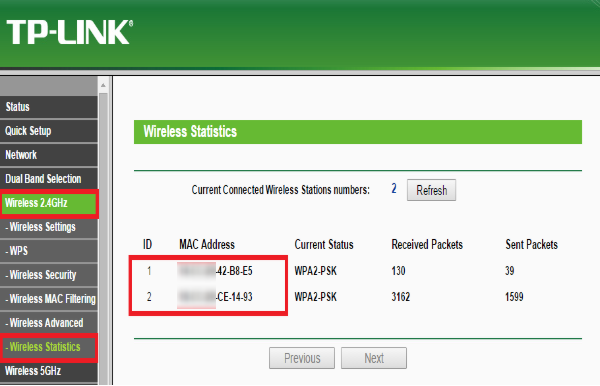
- For a dual-band extender, repeat the corresponding check for 5GHz. The example’s 5GHz address is XX-XX-XX-42-B8-E7, which closely resembles its 2.4GHz address, XX-XX-XX-42-B8-E5.
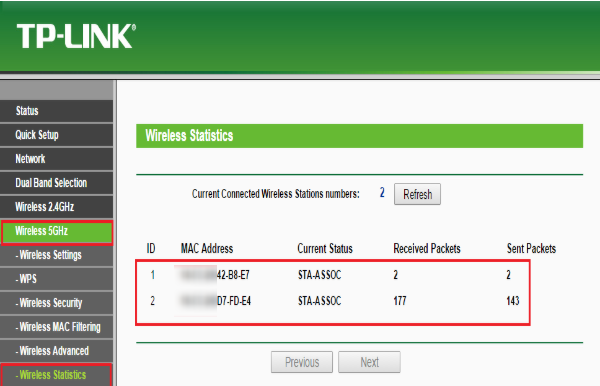
Contact the router vendor if you need help finding “Wireless Statistics.”
Configure MAC filtering to block listed clients
The Black List procedure blocks internet access for stations specified by enabled entries. The accompanying Archer C7 example is described as a White List example, while the actions below block the listed computer.
- Sign in to the router’s Web GUI and open “Wireless 2.4GHz” > “wireless Mac filtering” > “Add new.” Enter the PC’s “Virtual MAC Address,” set its status to “Enabled,” and click “Save.”
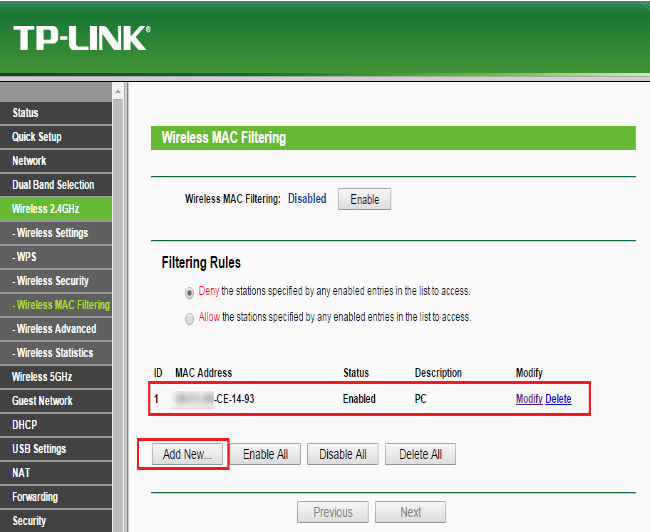
- Click “enable.” Only the computer specified in the list should then be blocked from internet access.
Configuring a White list on the router is not recommended here because finding and adding all of the RE’s MAC addresses is complicated. For help with the router’s MAC filtering controls, contact its vendor.
Part B: Universal Mode
In Universal Mode, the Range Extender substitutes its own MAC address for every client’s address. Enter the RE’s MAC address in the router’s MAC filtering settings, then choose the appropriate action:
- Select “Allow” to let all clients connected through the Range Extender access the internet.
- Select “Deny” to prevent all clients connected through the Range Extender from accessing the internet.
Part C: WDS Mode
WDS Mode preserves each client’s real MAC address rather than substituting a virtual address or the RE’s address. Enter the clients’ real MAC addresses in the router’s MAC filtering settings; no additional special configuration is required.
For further function and configuration details, download your product’s manual from Download Center.

