
Set Up or Reconnect a Kasa Smart Bulb with the Kasa App
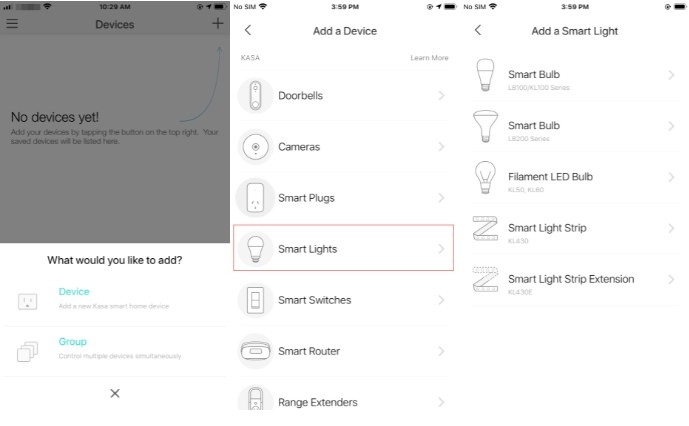
Use the Kasa Smart app on iOS or Android to connect your bulb to a 2.4GHz Wi-Fi network. The process includes account creation, pairing, and naming the bulb, with manual Wi-Fi connection required on iOS.
What We Know
To connect a new Kasa light bulb or reconnect one to a different Wi-Fi network, use the TP-Link Kasa Smart app on iOS or Android. Setup takes a few minutes and requires a 2.4GHz Wi-Fi network and a continuous power supply.
Before starting, connect your phone to your 2.4GHz network. Temporarily disable any VPN on the phone, since it may interfere with setup.
Step 1: Set up your TP-Link ID
Launch the Kasa app. For a first-time installation, create a TP-Link Cloud account (TP-Link ID) to manage the bulb. Further account guidance is covered in TP-Link ID Explained: What It Is and How to Create One?
Step 2: Add and configure the bulb
Tap the plus button in the upper-right corner, then choose Device > Smart Lights > Smart Bulb.
Screw the bulb into its socket and wait about five seconds. Three flashes indicate pairing mode.
If it does not flash, select My Smart Bulb Didn’t Blink. Follow the instructions to switch it off and on three times, moving slowly with about a one-second interval between OFF and ON. Confirm that the bulb flashes three times before tapping Next.
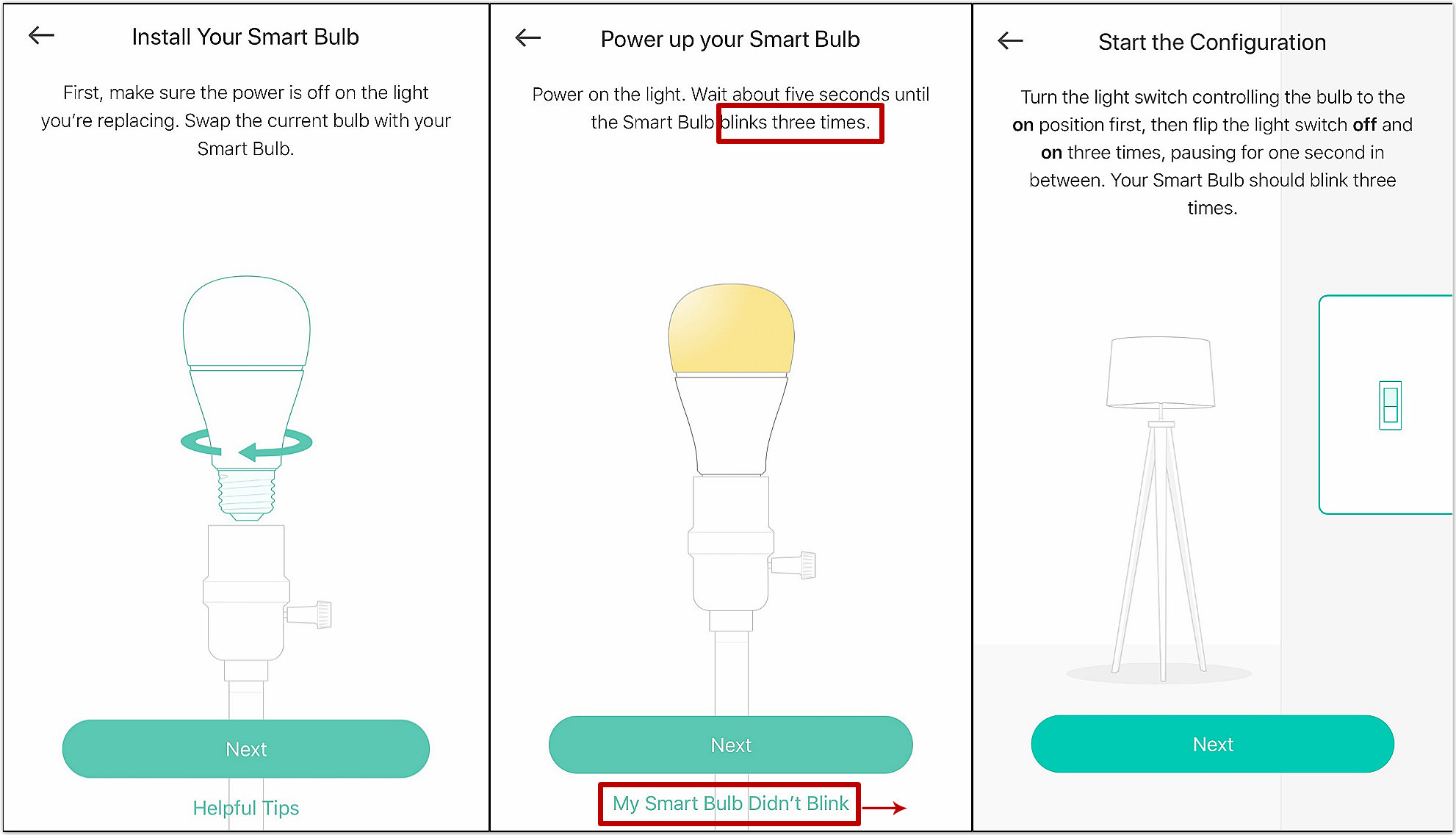
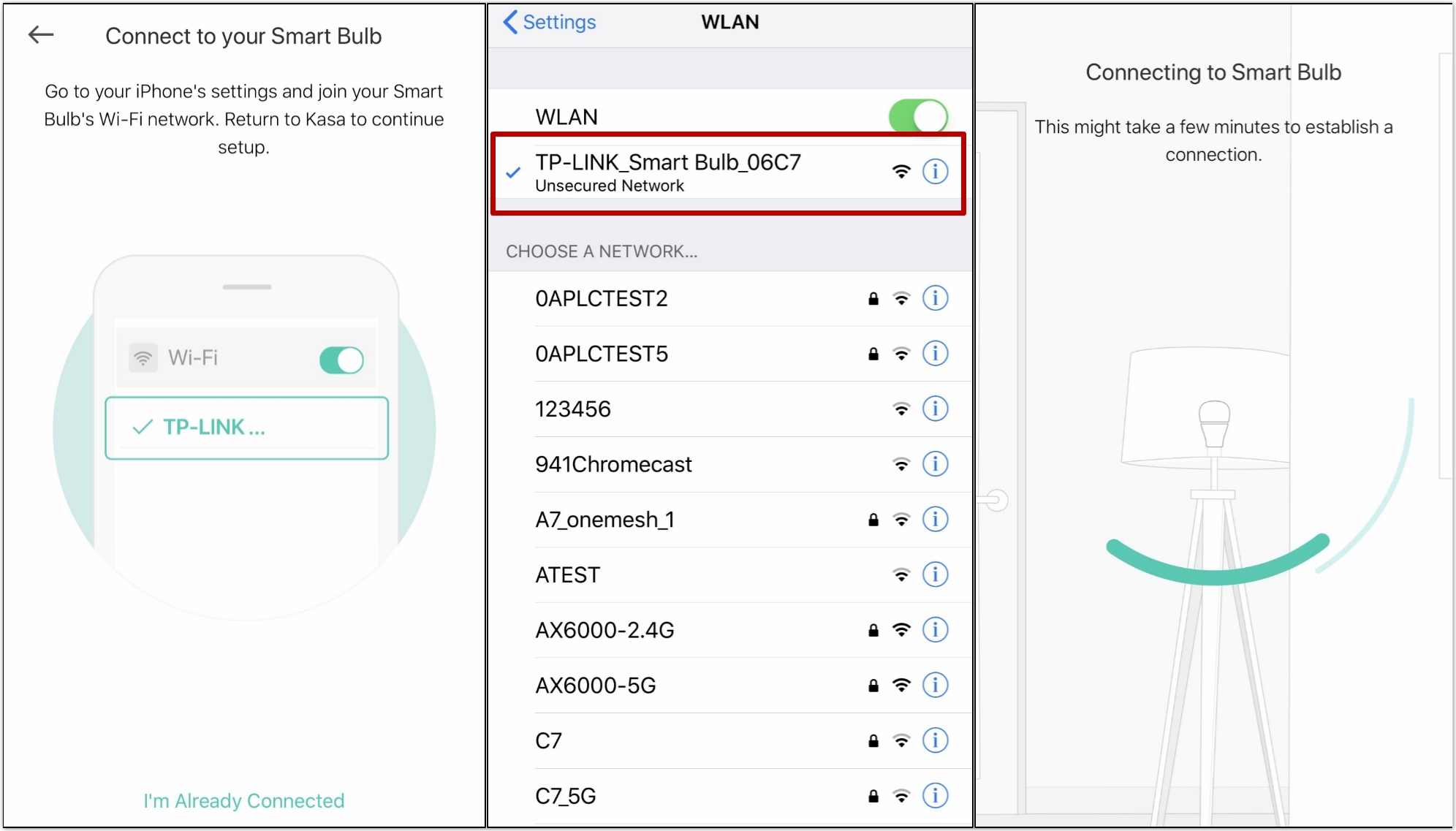
Connect the app to the bulb:
- Android: Kasa searches automatically, which may take about a minute. If it cannot find the bulb, open your phone’s Wi-Fi settings and manually join its default network, TP-LINK_Smart Bulb_XXXX.
- iOS: Open the phone’s Wi-Fi settings, manually join TP-LINK_Smart Bulb_XXXX, then return to Kasa to continue.
An unsecured or unprotected network warning is normal at this stage. Depending on your phone, choose Connect Anyway, Keep Using This Wi-Fi, or Stay Connected.
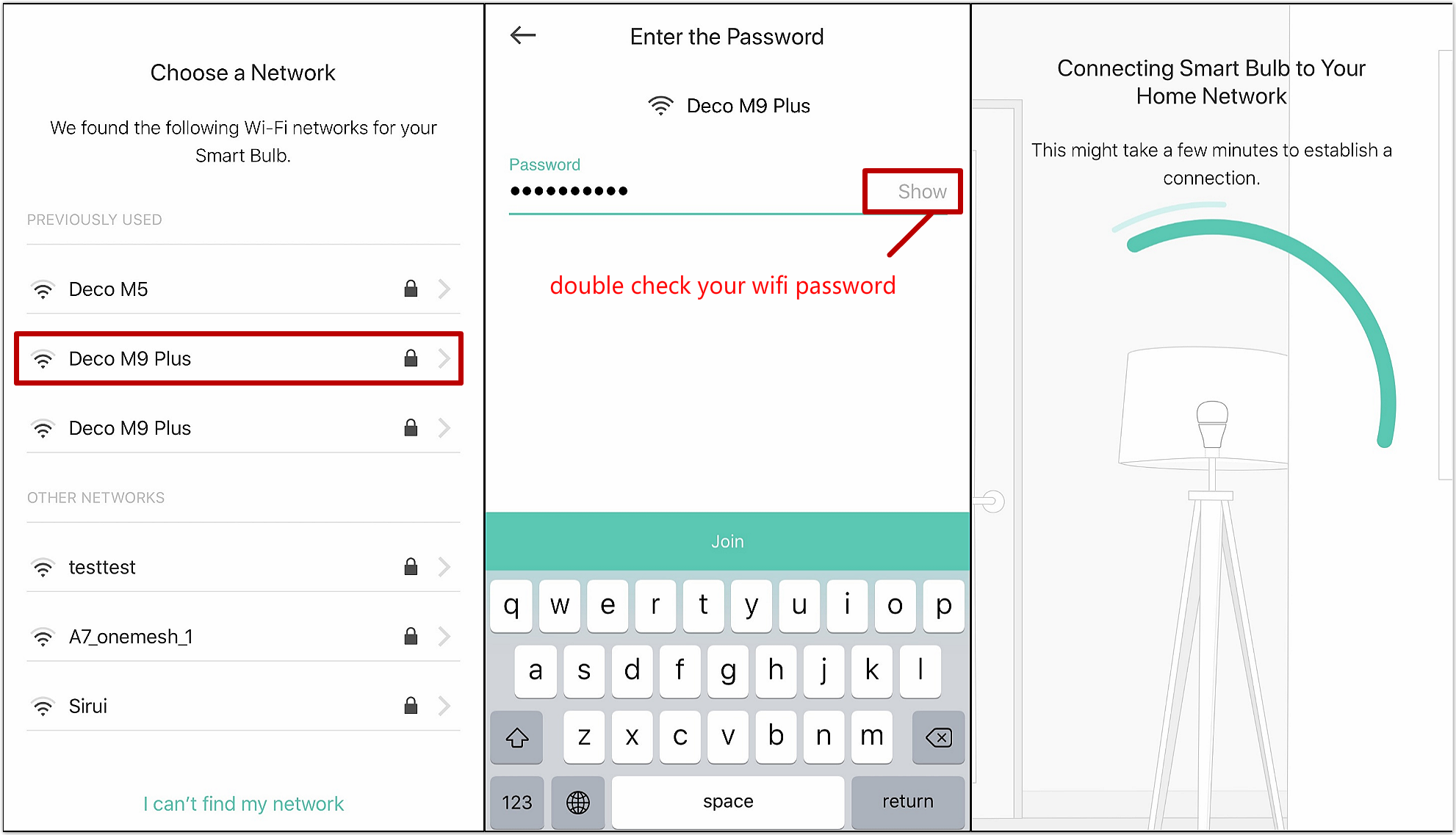
Connect the bulb to your home Wi-Fi network.
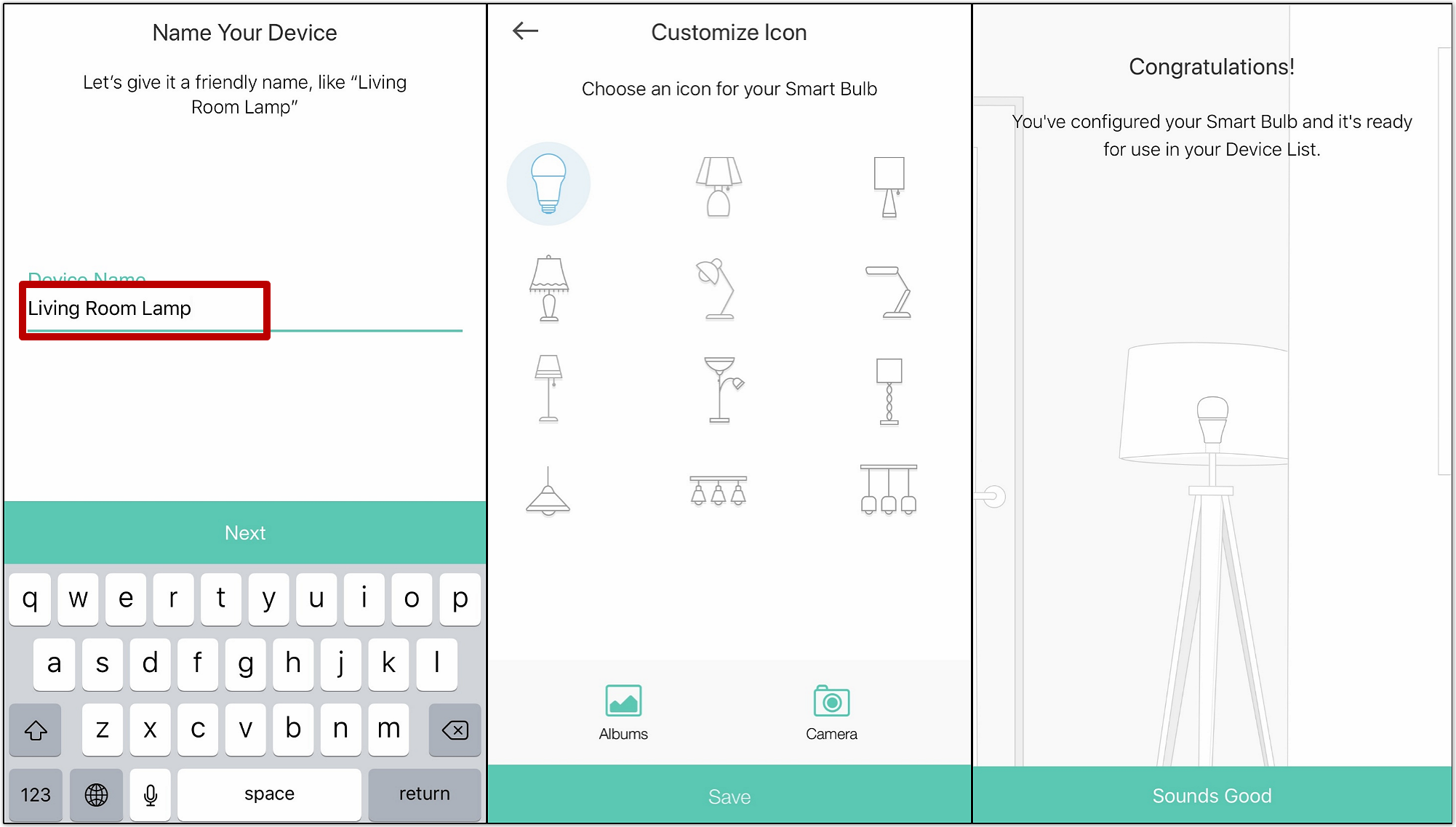
Give the bulb a name and select an icon to finish setup.
Keep the bulb’s power supply always on for proper operation. If setup problems persist, contact support.

