
Troubleshoot Slow Wired and Wi-Fi Speeds on a TP-Link Router
Use ordered checks to identify whether slow TP-Link connections stem from your modem, ISP, cabling or router settings. Separate Wi-Fi troubleshooting covers placement, interference, channel widths, QoS and Parental Controls.
What We Know
Slow connections can originate with your TP-Link router's settings, the modem, your Internet service provider (ISP) or wireless interference. Use the checks below to distinguish problems affecting the whole network from Wi-Fi-only slowdowns.
Also check ventilation: covering the router, enclosing it in a tight space or exposing it to direct sunlight can cause overheating and reduce speeds.
When both Ethernet and Wi-Fi are slow
If all devices have poor speeds, follow these checks in order.
Step 1: Compare speeds using the modem directly
- Disconnect the TP-Link router from the modem supplied by your ISP.
- Attach a computer directly to the modem with an Ethernet cable.
- Open a speed-test website in your browser and measure download and upload speeds.
- Compare the results with those obtained through the router. If they are the same, the modem or ISP is responsible rather than the router.
Step 2: Reboot the modem before the router
Disconnect power from the modem, then from the router. After two to three minutes, power up the modem. Wait until it is fully connected before restarting the TP-Link router.
Step 3: Replace the modem-to-router cable
Test another Ethernet cable between the modem and router. Use Cat6 or better for the best performance.
Step 4: Review the MAC address after a router replacement
If speeds fell after replacing an older router with a TP-Link model, your ISP may still recognize the previous router's MAC address. Try cloning either your computer's MAC address or the old router's MAC address to the new router. Further guidance is available in Why my Internet slows down when replacing the old router with a new one.
Step 5: Turn off QoS and Parental Controls
Quality of Service (QoS) and Parental Controls can limit overall performance. Disable them using the settings guidance below to check whether they are responsible.
When only Wi-Fi is slow
If Ethernet performs normally, investigate the wireless surroundings and router settings in this order.
Step 1: Set up an unobstructed test
Place your wireless device six to nine feet from the router, with no walls, furniture or other obstructions between them. Keep both on the same horizontal plane while running the speed test.
Step 2: Adjust the wireless channel and width
Nearby networks can interfere with Wi-Fi. Sign in to the TP-Link router and change its wireless channel and channel width. Try 40 MHz on the 2.4 GHz band, or 80 MHz or 160 MHz on the 5 GHz band. Consult Changing channel and channel width on a TP-Link router for guidance.
Step 3: Switch off QoS and Parental Controls
If performance remains slow, disable these features as described below.
Access the relevant router settings
Sign in to the router's web management page. For access instructions, consult How to log in to the web-based utility of a TP-Link wireless router.
Disable QoS
Follow How to disable QoS on your TP-Link router for the detailed procedure.
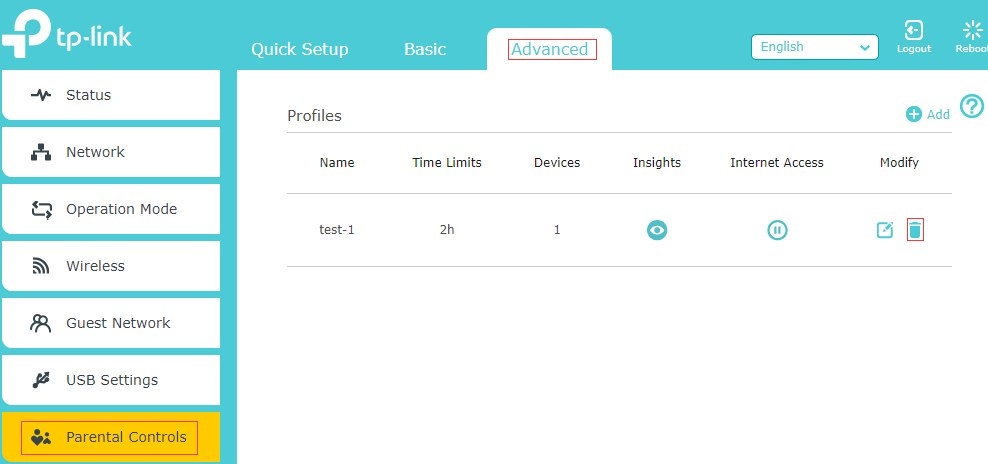
Disable Parental Controls
Via Web: On an Archer A7, for example, open Advanced > Parental Controls. Remove any listed profiles using the delete button.
Note: The same configuration procedure applies to TP-Link ISP-customized modem routers.
Via Tether app: Follow How to set Parental Control on TP-Link Wi-Fi Router via Tether app to turn off Parental Control.
Via Aginet app: Use How to set up Parent Control on TP-Link ISP-customized Modem Router for instructions on disabling Parental Control.
If speeds remain low
Contact TP-Link support for personalized assistance and a more detailed diagnosis if these checks do not resolve the slowdown.

