
Improve Wi-Fi Coverage with Better Placement, Settings and Expansion
Weak Wi-Fi can result from obstacles, interference, antenna positioning or channel conflicts. Work through router placement and channel settings first, then consider a range extender, Deco Mesh system or powerline adapters for remaining coverage gaps.
What We Know
Slow Wi-Fi, weak signals and limited range often call for changes in three areas: router placement, device settings and network coverage. Understanding what weakens the signal helps you choose the appropriate fix.
Why Wi-Fi performance drops
Distance, frequency and antenna design
The 5 GHz band offers faster speeds and clearer channels than 2.4 GHz, but its higher frequency makes it more sensitive to obstacles and limits its range.
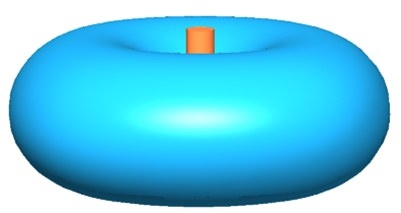
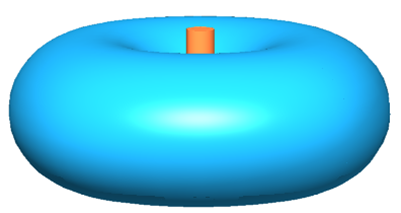
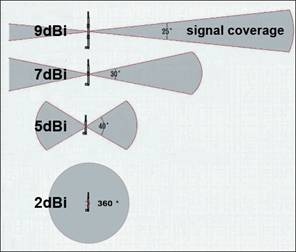
Home wireless routers and wireless ADSL2+ Modem Routers typically use omni-directional antennas. These spread signals horizontally in every direction, with weaker coverage above and below the antenna.
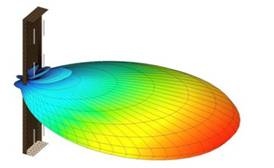
Directional antennas, commonly used in high-power outdoor products, focus their signal in one direction. Higher gain generally increases distance in that direction while reducing the effective coverage angle.
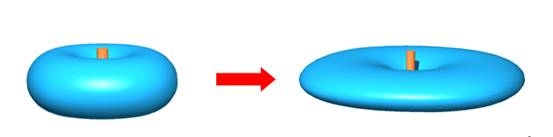
Little signal energy travels behind a directional antenna. High-Gain antennas concentrate it even more narrowly, making precise alignment important: pointing away from the intended coverage area can cause substantial signal loss.
Wireless communication performance also matters: higher transmission rates provide better performance.
Obstacles and interference
- Walls, floors and partitions obstruct wireless signals.
- Microwave ovens, cordless phones and Bluetooth devices can interfere when they use the same frequency band.
- Nearby access points (APs) or wireless routers using the same channel can create conflicts.
- Poor router or AP placement increases the effect of barriers; an elevated, central position helps reduce it.
Improve the router’s location
- Adjust antenna direction. Keep antennas vertical for coverage on the same floor. For a multi-story building, angle them at 30 degrees diagonally. Because transmission is weak at the antenna base, avoid positioning a wireless client directly below a TP-Link wireless router or access point.
- Limit physical and electronic interference. Avoid obstructions in the coverage area: every wall or ceiling weakens the signal, especially those containing metal or dense materials. Keep the device away from radio frequency (RF) noise sources, including microwaves, monitors, electric motors, and copying and fax machines.
Adjust wireless settings
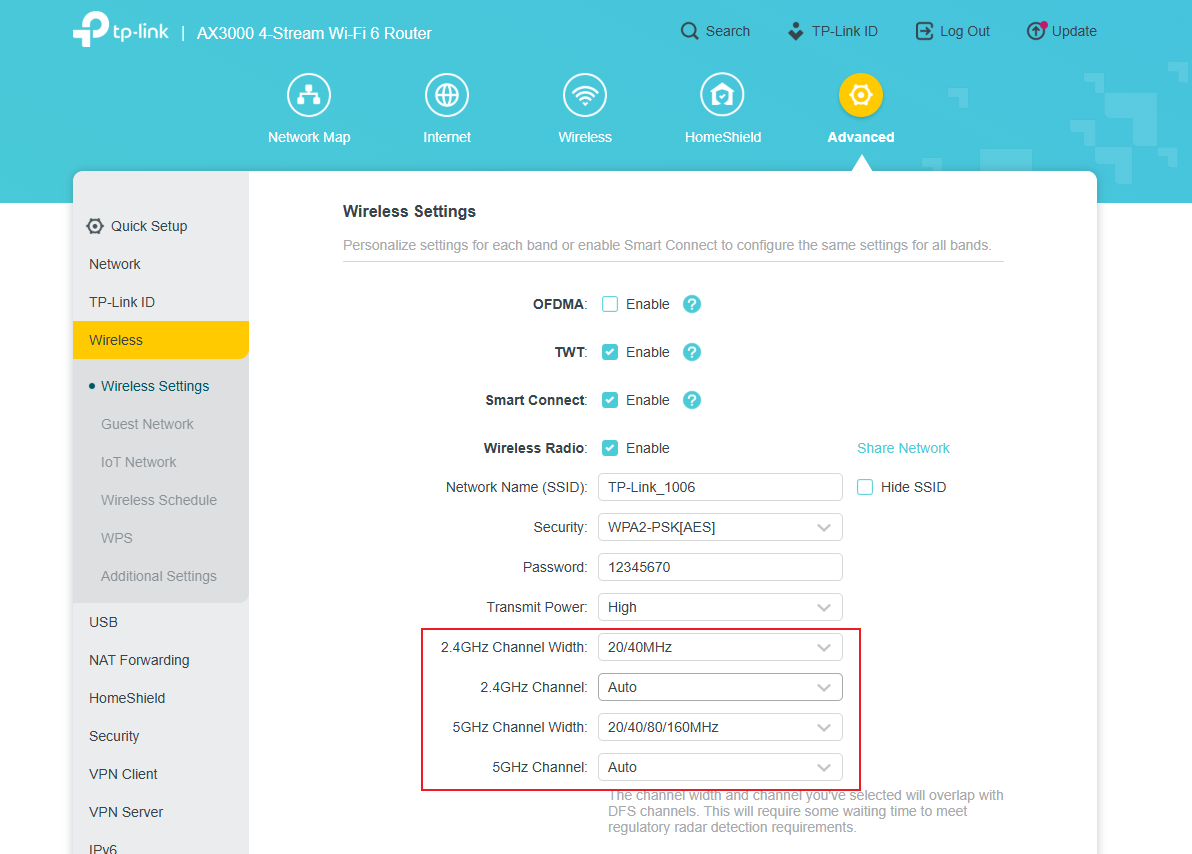
On TP-Link wireless products, changing the channel can reduce interference from nearby networks and other RF equipment.
- Log in to your product; consult the TP-Link router login guidance if needed.
- Using the Archer AX55 interface as an example, open Advanced > Wireless > Wireless Settings.
- Change the channel from its default, Auto, if interference is high. Consider 1, 6, or 11 for 2.4G, and 36, 40, 44, 48 for 5G.
The interface varies by model.
For 802.11b/g, the 2.4 GHz range contains 14 channels. Channels 1, 6, and 11 are recommended because they do not overlap. Some European regions use 1, 7, and 13 instead; check local regulations. Even recommended channels can be crowded, so choose the one that performs best in your environment.
Extend coverage where needed
If the signal still fails to reach parts of your home, compatible additional devices can fill the gaps:
- Range Extender: For one weak spot on the same floor, position it about halfway between the router and the poorly covered area.
- Deco Mesh Wi-Fi System: The best choice for whole-home coverage across rooms or floors, using multiple units to create a single seamless network with a strong, consistent signal.
- Powerline Adapters: A wired alternative for congested wireless environments or areas that are difficult to cable. They carry data through household electrical wiring to provide stable, reliable connectivity while reducing interference.

